



The Chrome “Not Enough Memory to Open This Page” error usually appears when Chrome runs out of available system or browser resources. It may also be caused by browser configuration, extensions, or errors in your operating system. This post provides 12 possible solutions to help you fix this issue.
Why Does Chrome Say “Not Enough Memory to Open This Page”?
Before fixing it, it’s important to understand what triggers the “Not Enough Memory to Open This Page” error in Chrome. Chrome relies heavily on RAM and virtual memory. Each tab, extension, and background process consumes resources. When Chrome can’t allocate enough memory, it fails to load pages.
Common causes include:
- Too many open tabs in Chrome
- Memory-hungry Chrome extensions
- Corrupted cache files
- Low virtual memory settings
- Outdated Chrome or OS version
Fix 1. Close Unused Tabs and Programs
Too many open tabs in Chrome can cause this error. You can close unnecessary tabs and windows in Chrome, and close running programs that consume large amounts of memory on your computer.
Also read: Chrome “This Site Can’t Be Reached” Error [Causes & Solutions]
Fix 2. Use Chrome Task Manager to End Tasks
You can also open Chrome’s built-in Task Manager to check and end unnecessary Chrome processes.
Steps:
- Press Shift + Esc to open Chrome Task Manager. You can also click the three-dot icon > More tools > Task manager to open it.
- Identify tabs or processes using high memory.
- Select them and click End Task.

Each Chrome tab runs as a separate process. Reducing tab count immediately frees memory and often resolves the “Not Enough Memory to Open This Page” error.
Fix 3. Restart Chrome/Device Completely
To release memory in your system, you can also fully close Chrome and restart your computer. A clean restart resets memory allocation and frequently fixes the “Chrome not enough memory to open this page” issue.
Fix 4. Use Windows Task Manager to Close Unnecessary Processes
Background Chrome processes or other system processes may still run to consume memory. Use Windows Task Manager to identify and end them.
Steps:
- Close Chrome.
- Press Ctrl + Shift + Esc to open Windows Task Manager.
- Check and end all Chrome-related processes.
- Check and end all other unnecessary programs and processes in your system.
- Reopen Chrome and load the page again.
Fix 5. Clear Chrome Cache and Cookies
Corrupted cache files and cookies may cause Chrome to consume excessive memory and lead to this error. Try clearing the cache and cookies in Chrome to see if it helps fix the issue.
Steps:
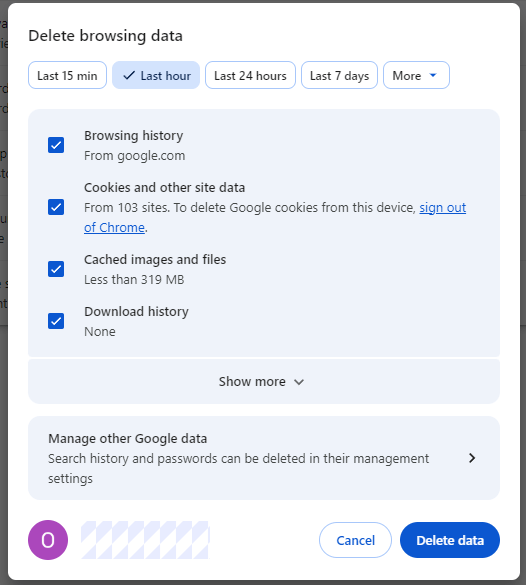
- Go to chrome://settings/clearBrowserData or click the three-dot icon > Delete browsing data.
- Select Cached images and files, Cookies and other site data.
- Choose More > All time.
- Click Delete data.
- Then restart Chrome and try to load the page again.
Fix 6. Disable or Remove Heavy Chrome Extensions
Extensions are a hidden cause of the “Not Enough Memory to Open This Page” problem in Google Chrome. Chrome ad blockers, download managers, etc., often consume large amounts of RAM. Removing unnecessary extensions can dramatically improve Chrome stability.
Steps:
- Go to chrome://extensions/.
- Disable all extensions.
- Restart Chrome.
- Re-enable extensions one by one to find the culprit.
Fix 7. Enable Chrome Memory Saver
Chrome has a built-in Memory Saver feature designed specifically to prevent memory issues.
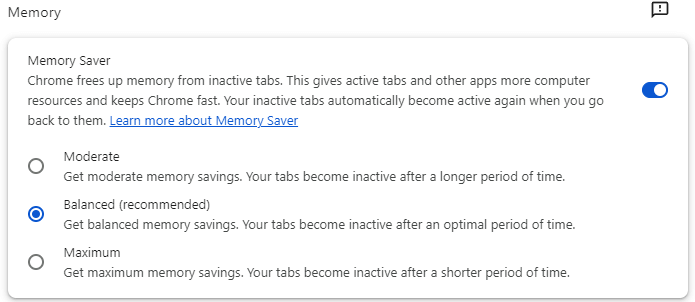
It helps free up memory from inactive tabs and gives active tabs and other apps more computer resources. It keeps Chrome fast and reduces the chance of encountering “Not Enough Memory to Open This Page” errors during heavy browsing sessions. Your inactive tabs automatically become active again when you go back to them.
Steps:
- Open chrome://settings/performance.
- Under Memory, enable Memory Saver.
- Restart Chrome and try to load the page again.
Also read: Is This Site Down? Check and Troubleshoot Website Down Issue
Fix 8. Update Google Chrome or Reinstall It
Outdated Chrome versions may contain memory-related bugs. Try to update Chrome or reinstall Chrome to see if the issue can be fixed.
Steps for updating Chrome:
- Open Chrome.
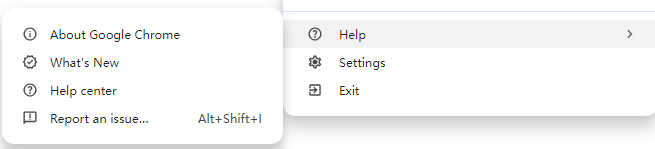
- Click the three-dot icon in the top-right corner > Help > About Google Chrome.
- It will automatically check for updates and install the latest Chrome version.
- Restart Chrome.
You can also remove Chrome from your device and download Chrome again.
Fix 9. Reset Chrome Settings to Default
Misconfigured settings can cause Chrome to behave inefficiently.
Steps:
- Open chrome://settings/reset.
- Click Restore settings to their original defaults.
- Confirm reset.
- Restart Chrome.

This does not delete bookmarks or passwords but often resolves the persistent “Not Enough Memory to Open This Page” error in Chrome.
Fix 10. Scan Your System for Malware
Malware can hijack browser resources and trigger Chrome memory issues or the “Chrome keeps crashing” issue, especially on older systems. Scan your computer for malware or virus infection.
Steps:
- Use Windows Security or trusted third-party antivirus software to perform a full system scan.
- Remove detected threats.
- Restart your device.
Fix 11. Increase Virtual Memory (Windows Users)
If physical RAM is limited, Windows relies on virtual memory. Incorrect settings can trigger the “Chrome not enough memory to open this page” error. Proper virtual memory allocation ensures Chrome can load pages even under high memory demand. Follow the instructions below to increase virtual memory on Windows.
Steps:
- Press Windows + I.
- Select System > System Information > Advanced System Settings.
- Click the Advanced tab, then click Settings under Performance.
- In the Performance Options window, click the Advanced tab, and click Change under “Virtual Memory”.
- Uncheck “Automatically manage paging file size for all drives”.
- Select your system drive (usually C:).
- Choose “Custom Size”.
- Enter values for Initial size (MB) and Maximum size (MB). A common recommendation is 1.5x your physical RAM for the initial size and 3x for the maximum (e.g., for 16GB RAM, start around 24,576MB, max 49,152MB).
- Click Set and click OK, then restart your computer to apply the changes.

Fix 12. Upgrade System RAM
If you frequently face the “Not Enough Memory to Open This Page” error in Chrome, your hardware may be the bottleneck.
Practical tips:
- Add more RAM (8GB minimum recommended)
- Avoid running multiple browsers simultaneously
Conclusion
The “Not Enough Memory to Open This Page” error in Chrome is not random. It is a clear signal that your browser or system needs optimization. By applying the 12 methods above, you can fix this issue, improve Chrome performance, and prevent it from happening again.
If you can’t access or open some websites in Google Chrome, it may be due to regional restrictions. You can use a VPN – LightningX VPN – to easily break the geo-restriction. This VPN offers 2000+ servers in 70+ countries (with several free servers), helping you unlock global content with ease. Use this VPN for Chrome, Windows, Mac, Android, iOS, Linux, TV, Firefox and Edge now.






