


The WiFi password is an important defender of your WiFi security. To protect your WiFi against unauthorized access and protect your internet connection, you can periodically update your WiFi password. This post provides a clear, step-by-step guide on how to change Wi-Fi password on most routers and devices.
How to Change WiFi Password on Any Router: Step-by-Step Guide
Step 1. Find the router model
Check the label on your router or your router manual to look for the router model number.
Step 2. Find your current WiFi password
Check the default WiFi password on the label on your router. Look for “WiFi Password”, “Network Key”, or “SSID Key”.
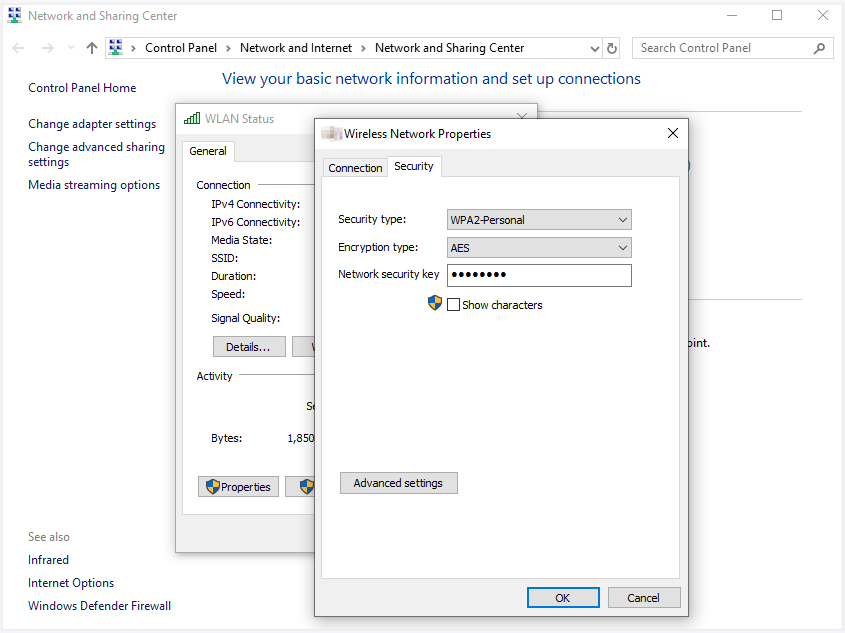
Alternatively, you can find your current WiFi password on a connected device. For Windows, click Start > Settings > Network & Internet > Status > Network and Sharing Center, click your current network, click Wireless Properties > Security > Show Characters to reveal your current WiFi password.
Step 3. Find your router IP address
The router IP address is commonly 192.168.1.1 or 192.168.0.1. It may be different for different router brands or WiFi network providers. You can manually check your router’s IP address.
On Windows:
- Press Windows + R, type cmd, and press Enter to open Command Prompt.
- Type “ipconfig” and press Enter.
- Check for the “Default Gateway” option under your current network and check your router’s IP address.
On macOS:
- Click Apple > System Settings > Network.
- Click your current WiFi and click “Advanced”.
- Click “TCP/IP”.
- Your router’s IP address is listed next to “Router”.
On iPhone/iPad:
- Open Settings.
- Tap WiFi.
- Tap “i” next to your current network. Find the IP address of your router next to “Router”.
On Android:
- Open Settings.
- Tap Network & Internet > WiFi.
- Tap your connected WiFi and check your router’s IP address.
Step 4. Access your router’s admin panel in a browser
After you find your router model, current password, and IP address, you can open a web browser on your computer or mobile device.
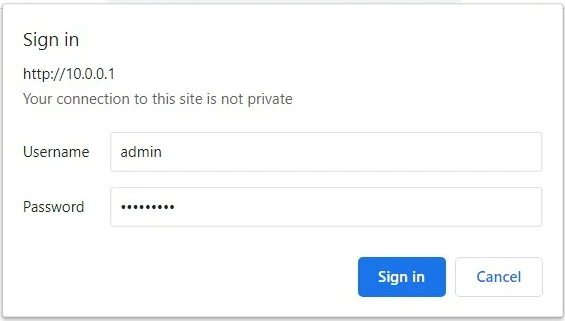
Enter your router’s IP address (for instance, 10.0.0.1, 192.168.1.1) in the address bar and press Enter.
Enter your router’s admin username and password. If you haven’t changed them, the default username and password are “admin” and “password”.
Step 5. Open the Wireless Settings page
After logging in, you can find the “Wireless”, “Wireless Security”, or “WiFi” section, often under “Settings” or “Advanced Settings”.
Step 6. Change your WiFi password
Look for an option named “Password”, “Passphrase”, “Wireless Key”, or similar.
Click “Edit” or a similar option that lets you change your network password.
Enter a new password for your WiFi. It’s advised you use a strong password with a mix of letters, numbers, and special characters. Keep and remember your new WiFi password.
Click “Apply” or “Save” to update your WiFi settings.
Step 7. Reconnect all devices to WiFi
After changing your WiFi password, you need to enter the new password on all your devices to reconnect them to your WiFi.
Also read: How to Share WiFi Password on iPhone, Android, PC, Mac
IP Address and Wireless Settings for Various Router Brands
For Linksys Routers:
- IP Address: 192.168.1.1.
- Wireless Settings: “Wireless” > “Wireless Security”.
For TP-Link Routers:
- IP Address: 192.168.0.1 or tplinkwifi.net.
- Wireless Settings: “Wireless” > “Wireless Security”.
For Netgear Routers:
- IP Address: 192.168.1.1 or routerlogin.net.
- Wireless Settings: “Wireless Settings” or “Advanced” > “Wireless Setup”.
For D-Link Routers:
- IP Address: 192.168.0.1 or 192.168.1.1.
- Wireless Settings: “Setup” > “Wireless Settings” > “Manual Wireless Network Setup”.
For Asus Routers:
- IP Address: 192.168.1.1.
- Wireless Settings: “Advanced Settings” > “Wireless”.
Best Free VPN to Protect Your Internet Connection
If you are looking for a free VPN service to help you unlock global information and secure your internet connection, you may try LightningX VPN.
LightningX VPN is a top free VPN for PC, Mac, Android, iOS, TV, Linux, Chrome, Firefox, Edge, etc. It provides 2000+ global servers in 70+ countries, including several free servers.
Using LightningX VPN, you can get a private, secure, and ultra-fast network connection. All your online activities are encrypted thanks to its strong encryption protocols. It changes your IP address to a virtual one to protect your privacy. The strict no-log policy also ensures your privacy security.







