


Even though the Opera browser offers a secure online environment, it still has some risks. If you want to hide all your online data from others, turning on incognito mode might help. Today, we will introduce a complete guide on how to go incognito on Opera GX and Opera. You will also learn the benefits and limitations of using incognito mode on the Opera browser.
What Is Incognito Mode on Opera GX?
Incognito Mode is a feature in some browsers that hides your search history or other online activity data, such as cookies and passwords.
Opera GX is an excellent browser for gamers. It allows them to enter this mode to protect their privacy and online activities.
Once you go incognito on Opera GX, your browsing history will not be stored, cookies will be cleared after each session, and websites won’t track your preferences, unlike regular browsing.
How to Go Incognito on Opera GX/Opera Desktop
The steps for turning on incognito mode on Opera GX and Opera on the computer are the same.
Step 1. Go to the Opera GX or Opera browser on your computer.
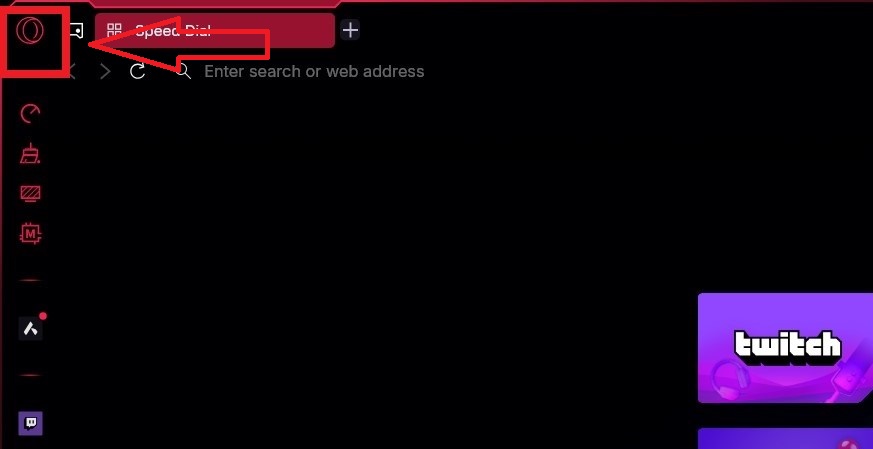
Step 2. Click the Opera GX or Opera icon on the top left of the browser. This will open a menu of applications.
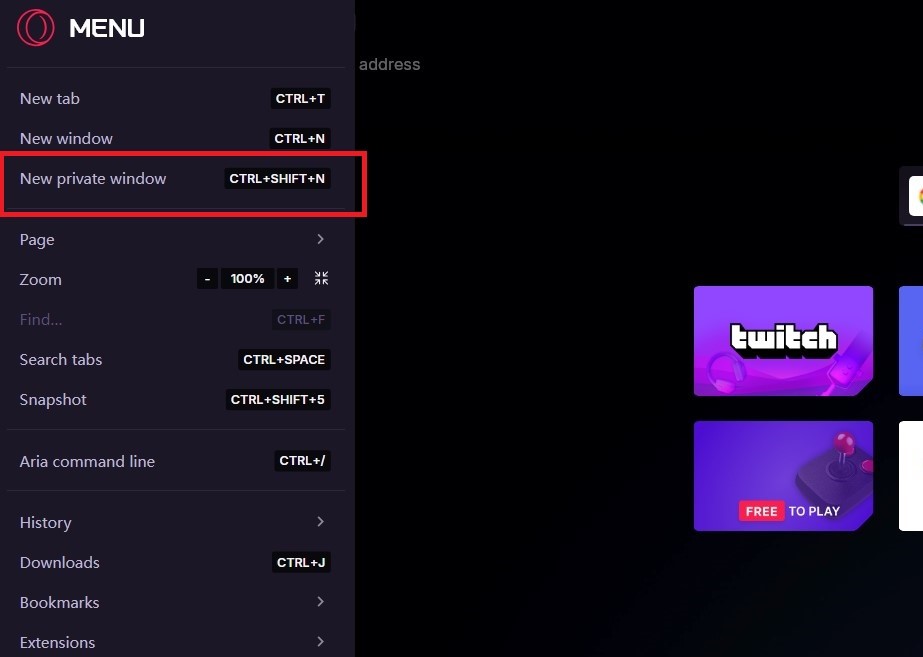
Step 3. Select New Private Window from the menu. Then, you’ve successfully entered incognito mode on Opera GX or Opera browser.
You can also use keyboard shortcuts Ctrl+Shift+N on Windows and ⌘+Shift+N on Mac to go to incognito mode on the Opera GX and Opera browsers.
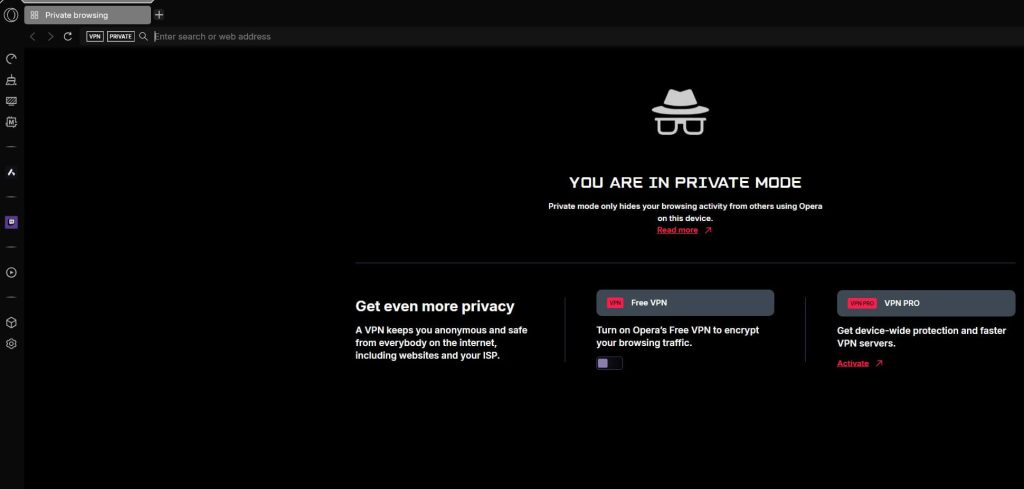
Step 4. Done. You can now search for something from the top left corner of the browser. To turn off incognito mode, directly close the browser.
How to Go Incognito on Opera GX and Opera Mobile (Android & iOS)
Opening the private mode on Opera GX and Opera mobile can help you access websites without leaving a trace. The steps are as simple as turning it on the desktop.
Go into Incognito Mode on Opera GX Mobile (Android & iOS)
Follow the steps below to open incognito mode on the Opera GX browser on Android, iPhone, or iPad.
Step 1. Go to Opera GX on your mobile device.
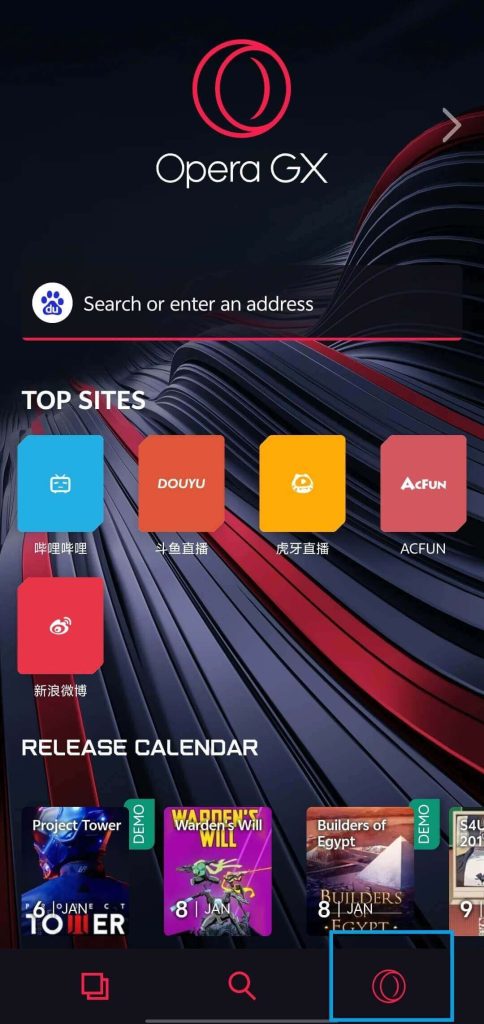
Step 2. Tap the Opera GX icon at the bottom right of the browser. This will open a menu of online activity settings.
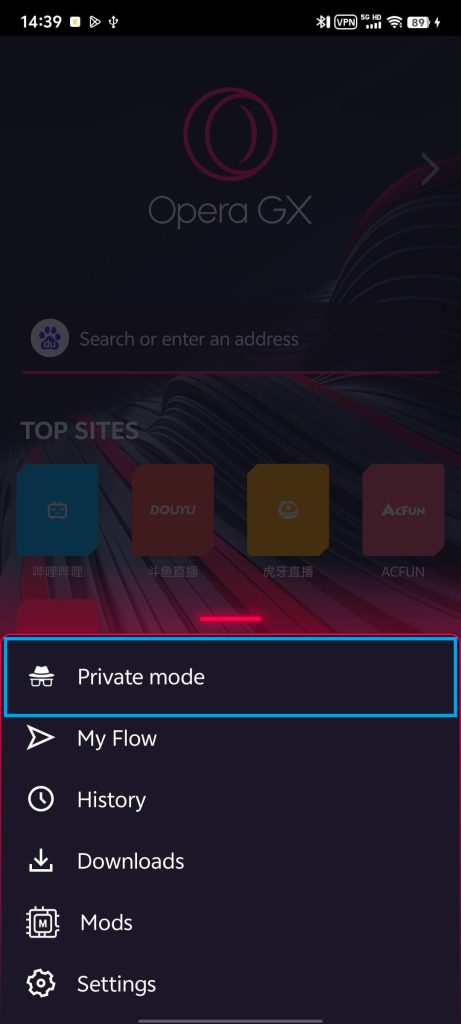
Step 3. Select Private mode from the menu. Now, an incognito window should open in your Opera GX mobile browser.
Go into Incognito Mode on Opera Mobile (Android & iOS)
Follow the steps below to enable private mode in your Opera mobile browser.
Step 1. Open the Opera browser on your phone or tablet.
Step 2. Tap the FAB button next to the profile icon on the lower right.
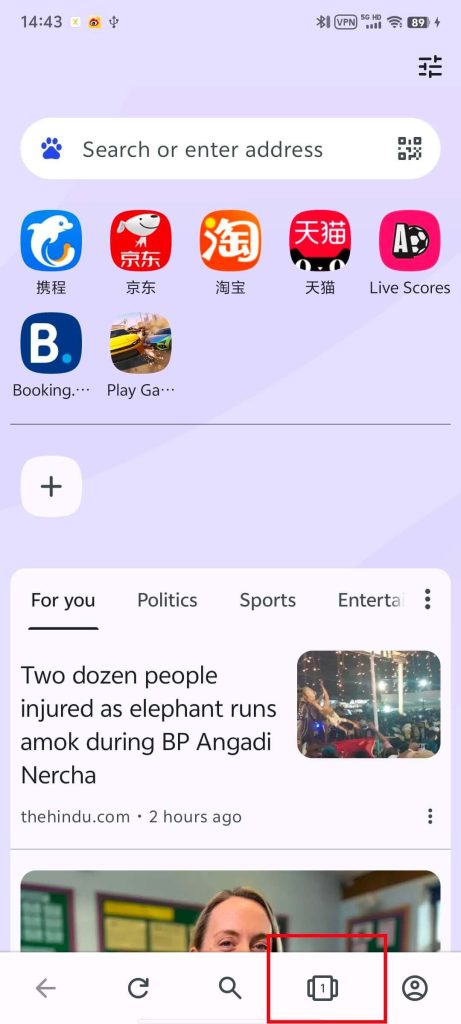
Step 3. Tap the three dots at the bottom right of the FAB page.
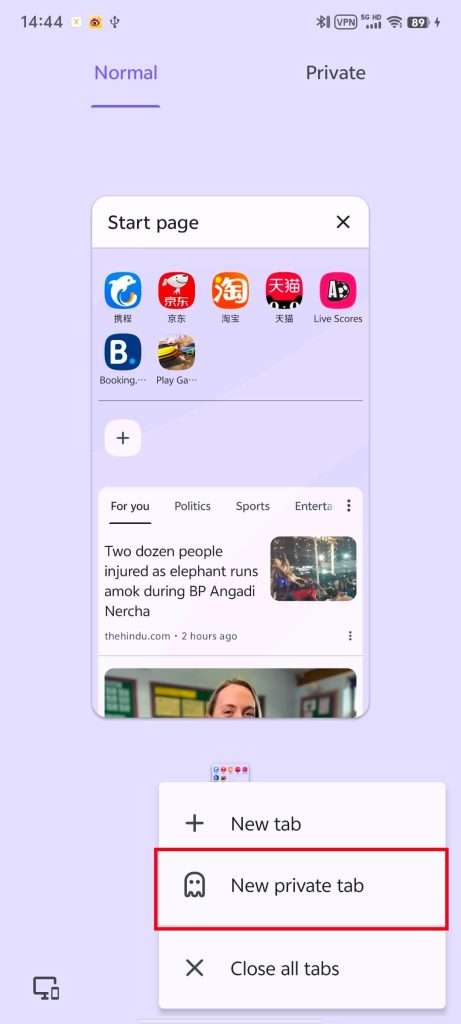
Step 4. Select the New private tab to open an incognito tab. You can also tap Private on the top right of the page and then tap on the “+” button at the bottom to open a private window.
Step 5. Now you can search for something in incognito mode on the Opera mobile.
Benefits and Limitations of Turning on Incognito Mode on Opera GX
There are many benefits of using incognito mode on Opera GX, while there are also some disadvantages.
Advantages
- Privacy protection: There will be no stored browsing history, Cookies, website data, or other online activities.
- Compatible with other features: You can use incognito mode with other privacy protection features on Opera GX, such as the built-in ad blocker and VPN, to enhance your online privacy.
- Separate from regular tabs: You can open both regular mode and incognito mode simultaneously, making it easy to switch when privacy is needed.
Disadvantages
- Not completely anonymous: Incognito mode can’t prevent your ISP or the websites you visit from recording your activities. You can use a VPN to avoid being tracked.
- Limited extensions: In incognito mode, most browser extensions are unavailable, which might affect your experience.
- Low search efficiency: You will repeat typing the website name when you open incognito mode because this mode won’t store your search history and login status. Also, recently opened windows in incognito mode cannot be restored after closing.
Related: Best Ad Blocker for Opera GX: Stream Without Interruptions
Tips for Enhanced Privacy in Opera GX
Switching on incognito mode doesn’t mean you have nothing to care about when browsing websites. Here are some ways to help you enhance online privacy when surfing on Opera GX.
Use a VPN: This is the safest way to browse on Opera GX. An Opera VPN encrypts your browsing history and IP address, stopping strangers from accessing your information. However, you should use a reliable VPN instead of a free one. You can try LightningX VPN because it can be trusted.
Tip:
LightningX VPN is one of the best VPNs for Opera GX because it is so safe, fast, and affordable. It offers 2,000+ servers in over 70 countries, including the US, Germany, Argentina, and Japan. You can set it up on Windows, macOS, iOS, Android, Linux, Apple TV, Android TV, and major browsers. It provides a simple interface, especially for gamers. You can unlock Steam, Epic Games, Netflix, YouTube, Hulu, and Disney+ from anywhere when using LightningX VPN.
Clear browsing data regularly: This can remove traces of your activity. You can press Ctrl + Shift + Del on Windows or Command + Shift + Delete on Mac.
Customize privacy preferences: You can tweak settings like location permissions, camera/microphone access, and clipboard sharing. Go to Settings > Site Settings to control access per site.
FAQs about Going into Incognito on Opera GX
Q: Is Opera GX’s private mode safe?
Yes. Opera GX’s incognito mode is safe. It hides your search history and online activities.
You can also use its additional features in incognito mode, such as the free built-in VPN or ad blocker extension, to add an extra layer of security.
Q: How do I turn on Incognito mode?
You can use keyboard shortcuts or find where the incognito mode is located. The steps for turning on incognito mode on Opera and Opera GX are listed in this post.
For other browsers, check our article: How to Turn on Incognito Mode in Chrome/Firefox/Safari/Edge?
Conclusion
It is simple to go to incognito on Opera GX. Once you’ve turned it on, your online information will be safer than in regular mode. However, we recommend you use a VPN when browsing because this can give your online data higher security than in incognito mode.






