


Are you looking for a guide on “how to reset PS5 controller”? Sometimes, your DualSense might suddenly not work during an intense ranked match of Fortnite. A simple fix to this issue is to reset the controller.
You’re in the right place. This post provides a detailed guide on how to reset a PS5 controller, covering different scenarios such as when the controller is functional and when it isn’t.
Things to Know Before Resetting the PS5 Controller
Before diving into today’s topic, I have outlined a few important points to ensure your PS controller reset process goes smoothly and without issues.
Resetting the PS5 controller can be done in two ways: soft reset and hard reset. A soft reset can also be seen as simply restarting the PS5 controller, while a hard reset forces the controller to return to its factory settings.
A soft reset does not delete your files or data, such as the PS5 controller’s firmware updates or important account information. On the other hand, a hard reset may erase data such as firmware updates, custom button configurations, and Bluetooth pairing settings on your DualSense controller, restoring it to its original state.
Therefore, if you choose to perform a hard reset, handle or back up the data on the DualSense controller, such as ensuring the controller is updated to the latest firmware version. Additionally, prepare a USB data cable to pair the PS5 controller with the console, as the pairing information will be deleted during a hard reset. Lastly, ensure that the PS5 controller has sufficient battery life to complete the reset process smoothly.
How to Reset PS5 Controller: Soft & Hard Reset
We typically recommend a soft reset, but a hard reset is more effective in certain cases. If your PS5 controller cannot connect or encounters other issues, it’s best to try a soft reset first to see if it resolves the problem.
How to Soft Reset PS5 Controller
If your PS5 controller is still functional, press and hold the PS button until the indicator light turns off. Wait a few minutes, then press and hold the PS button again until the indicator light turns on. Finally, check if your PS5 controller is working properly.
You can also connect a PS4 controller or mouse to your PS5 to turn off the DualSense controller. Just click the “Control Center” icon at the bottom of the PS5 home screen, click “Accessories,” select your currently connected PS5 controller, and click the “Turn Off” option.
How to Factory Reset PS5 Controller
If your PS5 controller has noticeable issues, you can perform a hardware reset to resolve the problem. Here are the detailed steps.
Step 1. Turn off the PS5 controller. You can long-press the PS button until the indicator light is off.
Step 2. On the back of the PS5 controller, find the small hole that is on the right side of “Sony”. Put the paperclip into the hole. Then you’ll hear a small click if the clip touches the rest button inside the hole.
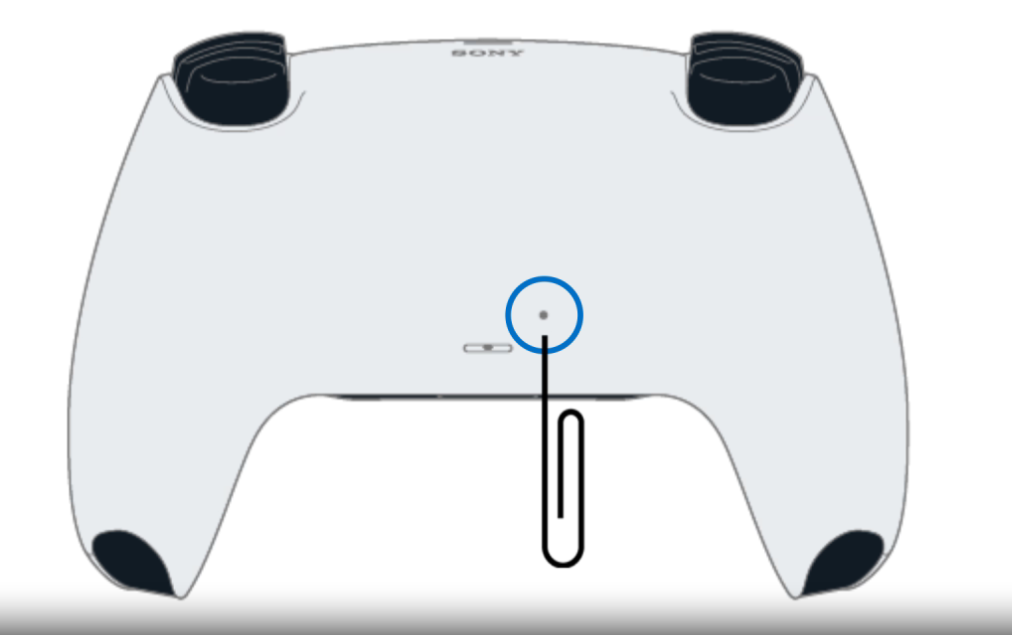
Step 3. Slightly press the button with the paperclip and hold for five seconds. The PS5 controller has now been reset.
Step 4. Now use a USB-C cable to reconnect the PS5 controller and console. Then, press the PS button to sync them.
If your PS5 controller still won’t work after the reset but meets Sony’s product warranty conditions, you can also send it back to the factory for repair.
How to Reset PS5
If your PS5 glitches while the controller won’t work, you can still reset the PS5 to fix the problem. Fortunately, the PS5 console can be reset with or without a controller. Here, we introduce how to hard reset the PS5. To soft reset the PS5, you just need to power it off and back on.
How to Reset PS5 With DualSense
If your PS5 controller still works, go to Settings to reset your PS5. Here are the steps.
Step 1. Open your PS5 and go to Settings, appearing as a gear icon.
Step 2. Go to System > System Software > Reset Options.
Step 3. Reset the PS5. Then, confirm the action. This will delete all data on your PS5 and factory reset it.
Tip:
After resetting your PS5 and DualSense, you can enjoy many fine games. However, there are still games blocked in your region. You can set up LightningX VPN on your PS5. This VPN offers 2,000+ servers in 70+ countries. It is very beginner-friendly and affordable. You can use it on Windows, macOS, iOS, Android, and smart TVs.

How to Reset PS5 without the Controller
If your PS5 controller won’t work or is lost, try other ways to factory reset the PS5 without a controller.
Method 1. You can connect a wired keyboard or mouse to the PS5 and navigate to Settings to reset it. The connection type of equipment should be USB Type A.
Method 2. You can use the dedicated app to reset the PS5. Just download the PS Remote Play and the PlayStation App on your phone. Then, connect your phone to the same Wi-Fi network as the PS5. On the app, sign in to your PS5 account and go to Settings to find the reset option.
Note: You’ll need to back up all the data on your PS5 before resetting it. Just go to Settings > System > System Software. Select Back Up and Restore > Back Up Your PS5. Then, select the items you want to back up and select Next > Back Up.
Benefits of Resetting a PS5 Controller
Resetting the DualSense can resolve many issues and help you regain a normal usage experience. Here are some common problems that can be addressed by resetting your PS5 controller.
When your PS5 controller cannot connect wirelessly to the console properly, you can reset the controller to clear the pairing data, which helps re-pair the controller and resolve Bluetooth connection issues.
Additionally, if your DualSense vibration or haptic feedback is malfunctioning, resetting the controller can help try to resolve the issue.
A hardware reset of the PS5 controller can also clear erroneous files and caches, such as faulty software update packages, to address controller update problems.
Resetting the controller also clears any incorrect settings, restoring it to its factory defaults.
How to Reset PS5 Controller – FAQs
Q: Why won’t my PS5 controller reset?
Your PS5 controller is actually resetting. The reset button on the back only performs a low-level reset and does not erase the Bluetooth pairing with your PS5. Since the controller was already paired, the console will automatically reconnect to it as soon as the PS5 turns on, even without a USB cable. This makes it seem like the reset didn’t work, when in reality it did.
To fully “reset” the connection, you need to power off the PS5, reset the controller, then reconnect it using a USB cable and press the PS button. Also, keep in mind that resetting might not fix stick drift, since drift is almost always caused by hardware wear rather than a software issue.
Q: Why won’t my PS5 controller work even after a reset?
Common problems like stick drift, input lag, or random movement are usually caused by hardware wear or dirt inside the analog stick, not software. In those cases, a reset won’t help. Cleaning the stick, adjusting dead zones, or using the warranty for repair/replacement are the only real solutions.






