


Do you know how to update drivers on PC? Updating drivers on Windows computers helps maintain optimal hardware performance and system stability. Drivers are software that enables the operating system to communicate with hardware components like graphics cards, network adapters, and printers.
By updating drivers, you can fix known bugs, enhance compatibility, and enjoy improved functionality. Common update methods include using Windows Update, Device Manager, downloading drivers from the hardware manufacturer’s official website, or utilizing third-party driver update software.
Do I Need to Keep My Computer Drivers Updated?
In most cases, keeping your computer drivers up to date is essential. Drivers are the software that enables the operating system to communicate properly with hardware components. Outdated drivers can lead to hardware compatibility issues, performance degradation, and even security risks.
For example, if your computer fails to connect to the network, one possible cause could be outdated network adapter drivers.
Additionally, certain games and applications may be affected by outdated graphics, audio, or video drivers. In some cases, obsolete GPU drivers can cause game crashes or blue screen issues. For instance, hardware-intensive games like Black Myth: Wukong may crash or display blue screens under specific conditions due to graphics driver issues.
Regularly updating drivers enhances system stability, improves performance, and delivers a smoother overall experience.
Tip: You can use LightningX VPN to protect your personal data privacy and bypass geo-restrictions.
- LightningX VPN employs military-grade AES-256-GCM encryption and adheres to a zero-logs policy, ensuring secure data transmission.
- With 2000+ nodes spanning 70+ countries and lightweight encryption protocols, LightningX VPN delivers ultra-fast connection speeds, effortlessly unlocking 4K HD videos, movies, and TV shows.
How to Update Drivers on PC (Windows 11/10): 4 Methods
Below are four methods to update drivers for network adapters, graphics cards, audio adapters, and more on your computer. Device Manager and Windows Update are the safest options, while downloading from official websites or using third-party software is also viable—just ensure reliable sources. Most methods involve relatively simple steps.
Method 1: Update PC Drivers Using Device Manager
One of the most direct ways to update PC drivers is through Device Manager. This built-in Windows tool manages hardware devices and their drivers. Follow these steps:
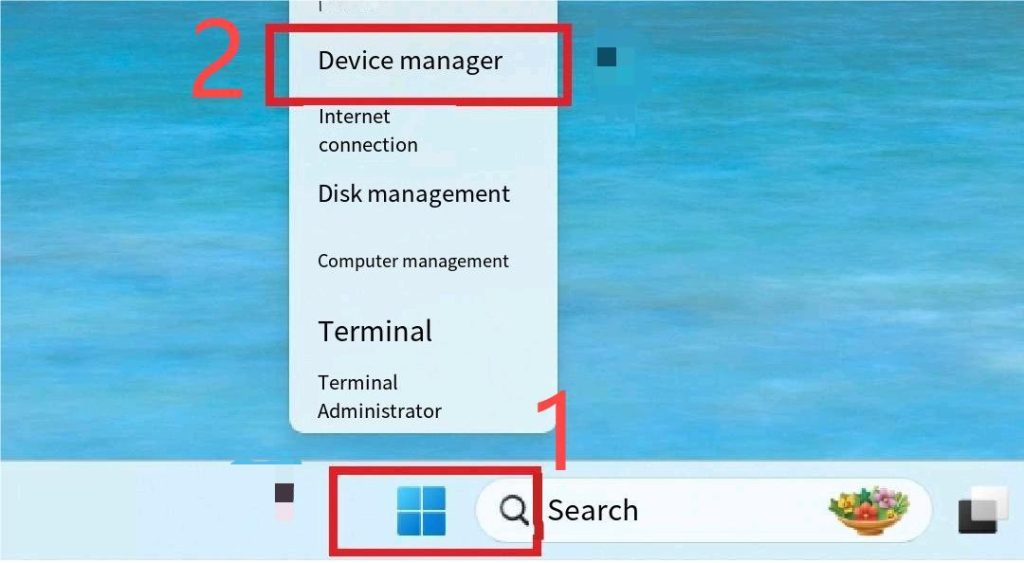
Step 1: Open Device Manager on your computer. Right-click the Start menu and select “Device Manager” to display a list of all hardware devices.
Step 2: In Device Manager, locate the device driver you wish to update, such as “Display adapters,” “Network adapters,” or expand “Sound, video and game controllers” to find audio-related devices.
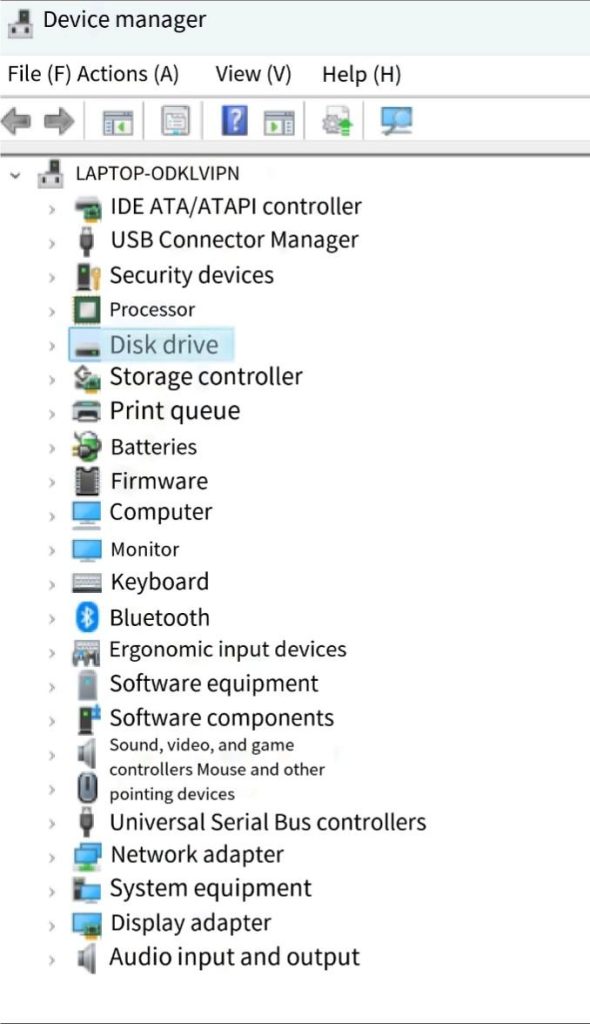
Step 3: Right-click the target device and select “Update driver.” You will then see two options: “Search automatically for updated driver software” and “Browse my computer for driver software.” For most users, selecting the first option is sufficient.
Step 4: Windows will automatically check for available driver updates. If a suitable driver is found, the system will install it automatically. If not, you will see a prompt indicating that the currently installed driver is the version recommended by Windows.
Method 2: Manually Update PC Drivers via Manufacturer Websites
For specific hardware devices (like graphics cards, sound cards, or network adapters), manually downloading and installing drivers from the manufacturer’s official website often provides newer versions than Windows’ automatic updates. Here’s how to update drivers on PC via the manufacturer’s website.
Step 1: Identify your hardware device model and manufacturer. Open Device Manager, expand the relevant device category (e.g., “Display adapters” or “Network adapters”), right-click the device, and view its name or properties to determine the specific model.
Step 2: Visit the official website of the hardware manufacturer, such as NVIDIA, AMD, or Realtek.
Step 3: Navigate to the “Support” or “Downloads” section on the official website and search for drivers compatible with your device model and operating system version.
Step 4: After downloading the appropriate driver, run the installation file and follow the on-screen prompts to complete the installation. You may need to restart your computer for the driver changes to take effect.
Method 3: Update Drivers via Windows Update
You can also update drivers via Windows Update, which is suitable for users prioritizing system stability and preferring not to manually download drivers. Follow these steps:
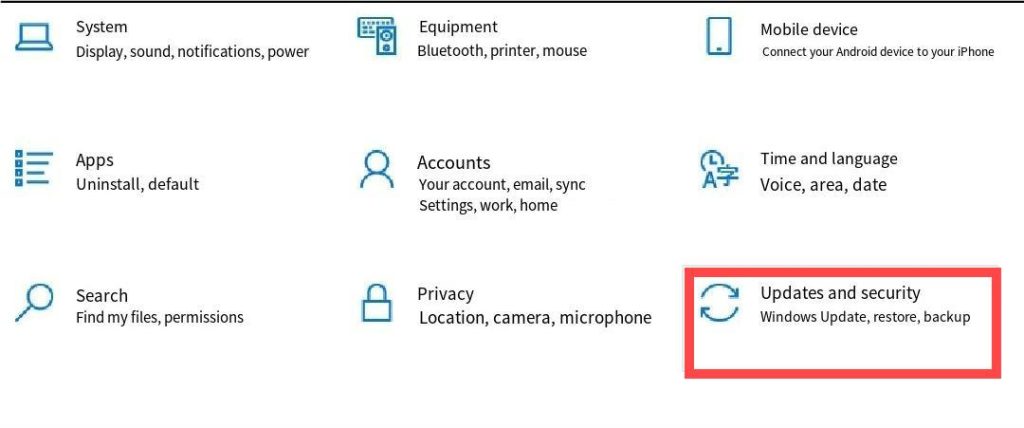
Step 1: Open “Settings” on your computer. Click the Start menu, then select the gear icon to access Settings.
Step 2: Navigate to the Updates page based on your Windows version:
- In Windows 10, select “Update & Security”;
- In Windows 11, directly click “Windows Update”.
Step 3: Click “Check for updates”. Windows will automatically search for available system updates, which may include driver updates.
Step 4: If updates are detected, click “Install” to apply them. Some driver updates may require restarting your computer after installation to take effect.
Further Reading: How to Update BIOS on Windows 11/10, ASUS, MSI
Method 4: Update PC Drivers Using Third-Party Software
If you prefer a more automated approach to driver updates, consider using third-party driver update software. These tools scan your system, identify outdated or missing drivers, and offer one-click update options. Here’s how to update drivers on PC using a third-party software.
Step 1: Select a relatively reliable tool, such as Driver Booster or Driver Easy, and review user reviews and feature descriptions beforehand.
Step 2: Go to the official website to download and install the software, avoiding installation packages from unknown sources.
Step 3: Open the software and scan your system to find drivers that need updating.
Step 4: Follow the software prompts to update drivers. Some tools may require payment to unlock full functionality.
Tip: While third-party driver tools offer simplicity, they carry risks like pushing incompatible drivers or bundling unwanted software. Before use, create a system restore point and prioritize reputable tools. Additionally, when downloading software or driver files, using an encrypted network environment (e.g., enabling a VPN) enhances transmission security. However, always prioritize official sources and exercise caution.
How to Update Drivers on PC Without Internet Access
If your computer temporarily lacks internet connectivity, you can still update drivers offline using external storage devices like USB flash drives. Follow these steps:
Step 1: On another computer with internet access, visit the hardware manufacturer’s official website and download drivers matching your device model and operating system version.
Step 2: Insert the USB flash drive into the internet-connected computer and copy the downloaded driver files to the USB.
Step 3: Insert the USB flash drive into the computer requiring driver updates. If the driver file is an executable installer (e.g., .exe or .msi), run it directly and follow the prompts to complete installation.
If the driver file is a compressed archive or contains an .inf file, open Device Manager, right-click the corresponding hardware device, select “Update Driver,” then choose “Browse my computer for driver software.” Specify the driver file path on the USB drive to install.
Tips for Updating PC Drivers
Here are some practical suggestions to keep in mind when updating computer drivers:
Check for Updates Regularly
Outdated drivers on your computer may affect gaming performance, video playback, or audio output quality. Therefore, it’s advisable to regularly check for driver updates for critical hardware (such as graphics cards, network cards, and sound cards) to maintain system stability and performance.
Create a System Restore Point or Backup Drivers
Before performing critical operations like driver updates, create a system restore point or back up your current drivers. This allows you to quickly revert to the previous state if compatibility or stability issues arise after updating.
Read Release Notes
Before downloading and installing drivers, review the manufacturer’s Release Notes to understand new features, fixed issues, and any known limitations. This information is typically available on the manufacturer’s official website.
Conclusion
Updating drivers is essential for maintaining your PC’s performance and stability. By using the methods outlined in this article, whether through Device Manager, the manufacturer’s official website, Windows Update, third-party tools, or offline installation, you can choose the approach that best fits your needs.
Regularly checking for updates on critical hardware and creating system restore points or backups before updating helps prevent common issues, ensures optimal hardware performance, and keeps your system running reliably.






