


Instagram is one of today’s most popular social media platforms for sharing daily life and tracking trends, with its music feature being an indispensable part of video creation.
However, many users encounter issues like Instagram music not working, being unable to search for tracks, or seeing the message “This music is not available in your region.”
This article will thoroughly analyze the causes of these problems and provide corresponding solutions to help you quickly restore Instagram’s music functionality.
What Is Instagram Music?
Instagram Music is a mobile feature that allows you to add music to your post, story, reel, and profile. It offers a music library for you to pick from when editing.
To add music to your videos or images, tap the music icon at the top of the editing page and then choose the desired song. You can decide which music part to play. As for your profile, tap Edit Profile and find the “Music” button, then tap on it. You will see the music library of Instagram, then choose your favorite one.
However, sometimes the feature might not work. Let’s see why this would happen.
Why Is My Instagram Music Not Working?
Here are several common causes of the Instagram Music feature not working.
- Network issue: If your Wi-Fi or internet isn’t stable or has a problem, Instagram Music might appear or play.
- Instagram app issue: If the Instagram app is outdated or has a conflict with other files or apps, it might not work properly and cause the music feature not to work.
- Geo-restrictions: If you are in a region where the Instagram Music library is limited, you can’t search for the desired music to use.
- Different location: If your current region differs from the region associated with your account information, your Instagram Music won’t show all songs.
- Account type: If you have switched the personal account to a business or creator account, the Instagram Music library might be restricted for the account’s commercial purpose.
8 Effective Ways to Fix Instagram Music Not Working
Depending on the situation, here are eight effective methods to fix issues with Instagram’s music feature. Before checking the solutions, you can try using a different device or account to determine whether the problem lies with the device or the account.
Fix 1. Restart the Instagram App
The quickest way to fix the music feature is to force-restart the Instagram app. However, if the feature still doesn’t work after restarting the app, restart your device to see if the problem is fixed.
Fix 2. Check the Internet Connection
You can scroll through the Instagram posts to test the internet speed. If it is slow, the music or audio won’t play or appear.
If your device is connected to the internet, turn off the connection for several minutes and then reconnect to it. If the device is connected to the Wi-Fi network, reconnect to it or restart the Wi-Fi router to see if the issue is fixed.
Fix 3. Check if the Instagram App Is Updated
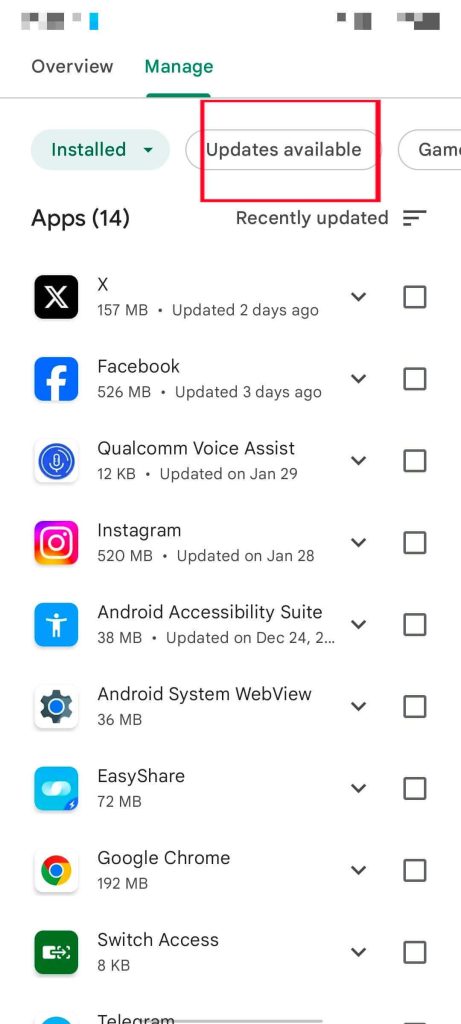
You can go to the Google Play Store or App Store to see if the Instagram app is updated. Here are the steps:
Google Play Store
- Go to the Google Play Store and tap your profile icon in the top right.
- Select “Manage apps and device” from the menu.
- On the “Overview” tab, tap “Updates available”.
- See if Instagram is the latest. If not, tap the “Update” button to renew the version.
App Store
- Open the App Store and tap your profile icon in the top right corner.
- Scroll down to see the updated list.
- Check if the Instagram app is up to date. If not, tap the “Update” button next to it to update it.
Fix 4. Clear the Cache on Instagram
If there is too much cache on Instagram, your story, post, or reel music might be stuck and won’t show up. You can clear the cache on Instagram to fix the issue. Here’s how.
iPhone
iPhone doesn’t support a built-in option to clear the cache for individual apps. You can reinstall the Instagram app to clear its cache.
Long-press on the Instagram app and choose “Remove App” and confirm by selecting “Delete App”.
Android
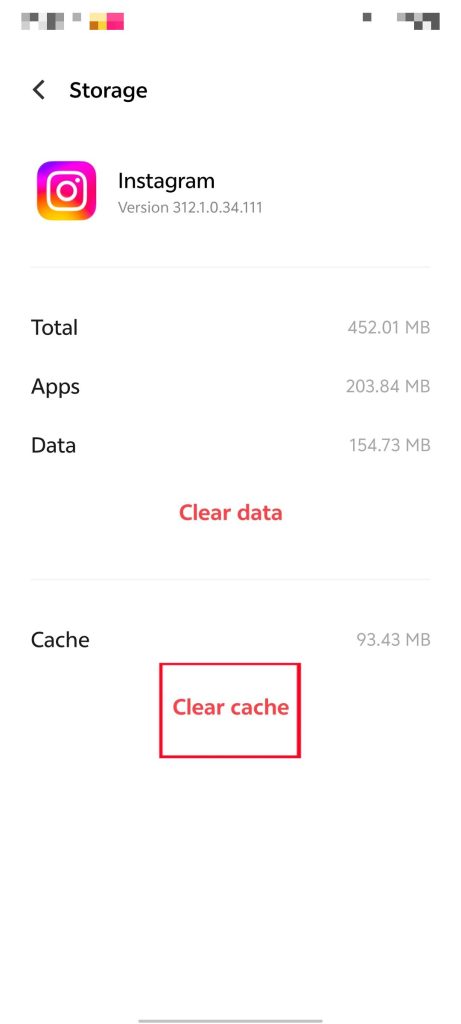
- Go to Settings and scroll down to find “Apps & notifications”, then tap on it.
- Scroll down and choose the Instagram app.
- On the Instagram app info page, tap “Storage & cache”.
- Select “Clear cache” to delete the cache.
Fix 5. Use a VPN
If you are traveling in a region where the Instagram Music feature is restricted, the Instagram Music search might not work. Change your IP address to another region to access the music library.
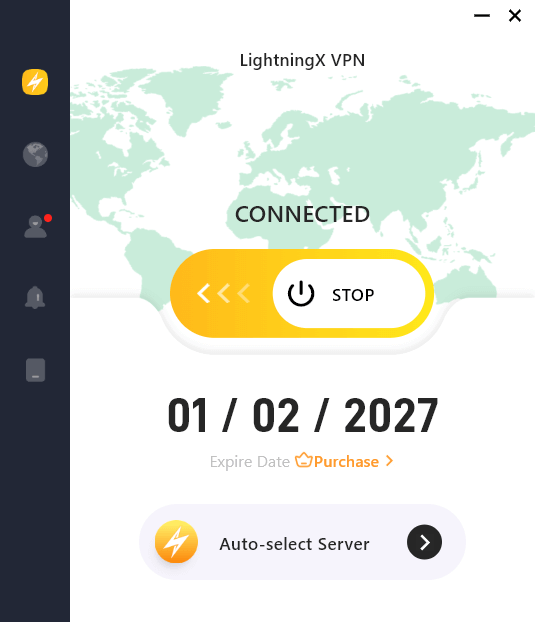
You can try LightningX VPN. This is an excellent tool to smoothly unblock geo-restrictions and protect your data and privacy. It has over 2,000 servers in more than 70 countries. Its high-end algorithm helps protect your Instagram account data and IP address. It has the native app on Windows, Linux, macOS, iOS, Android, Apple TV, and Android TV.
Take LightingX VPN as an example. Here is how to use a VPN on your mobile device.
- Download LightningX VPN from its official website.
- Open the VPN app and sign up for an account.
- Connect to a server that supports Instagram and its music library.
Fix 6. Change Your Account Type
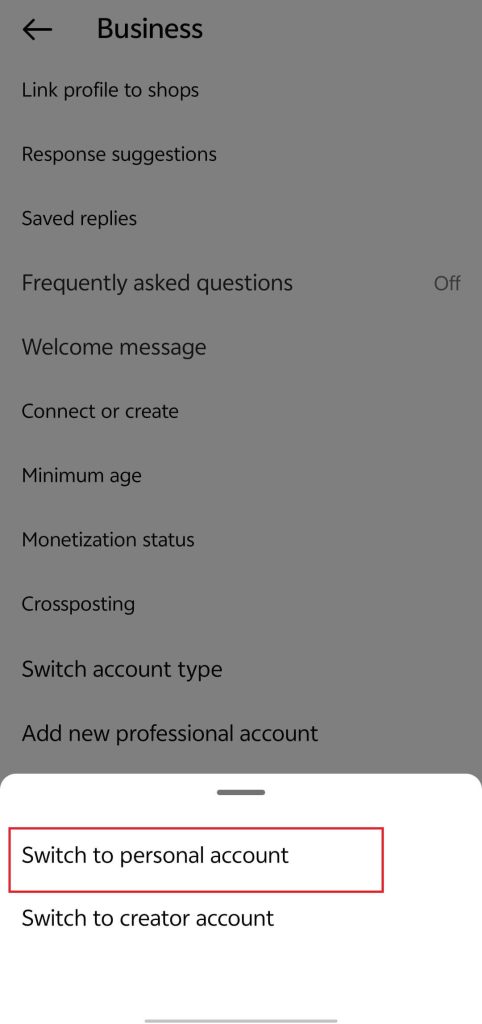
If your account type is commercial, switching it to the personal type will fix Instagram Music not working. Here’s how.
- On the Instagram app, go to your profile.
- Tap the three horizontal lines in the top right corner.
- Scroll down to the For Professionals section and select Business tools and controls.
- Select Switch account type.
- Select Switch to personal account.
You can also switch your account type to a Creator Account to solve the issue. Here’s how.
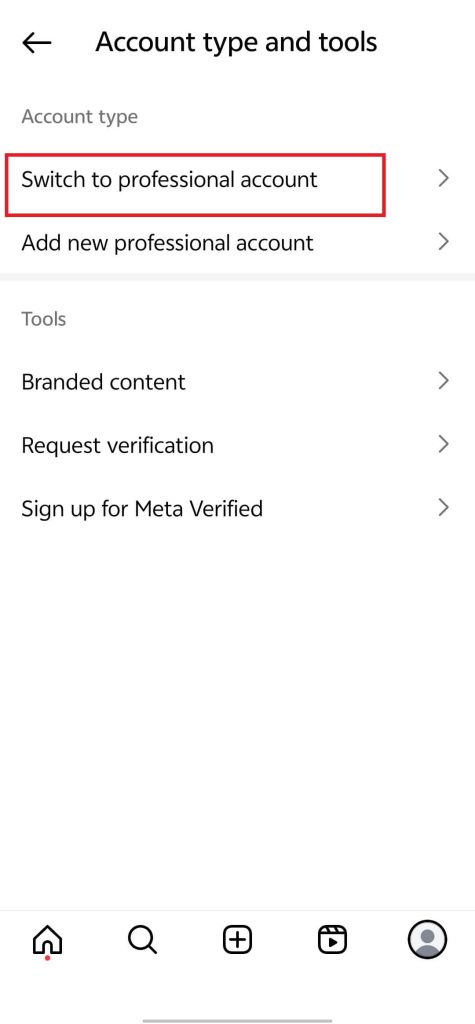
- On your profile page, go to Settings > Account type & tools.
- Select Switch to Professional Account. Then, follow the on-screen instructions to complete the switch. Choose to switch to the Creator account.
Fix 7. Convert the Song to an MP4 File and Upload it
If the technical methods are tried but the issue still exists, it might be because the song is restricted in your region. You can manually convert it into a video file and upload it to Instagram. Then, share the audio with your post, story, reel, or profile.
Note that if the music in your video is subject to copyright restrictions, Instagram may prevent you from using that audio in other videos.
Fix 8. Seek Help from Instagram Support
If none of the above methods can help you fix the problem, report the issue to the Instagram support team. You can do this on your mobile Instagram. Here’s how.
- Go to your profile page and tap the three horizontal lines.
- Select Settings > Help.
- Select Report a Problem.
- Tap Report problem without shaking. You can also choose to “Go back and shake phone”.
- Tap Include and continue.
- Explain the problem. You can also upload screenshots of the issue to solve it better. Then, tap Send.
Conclusion
By adopting the methods we mentioned in this post, you might be able to solve the Instagram Music not working issue. Once it is fixed, you can assist your creation with the large music library on Instagram.






