


Discord, as one of the most popular voice communication apps among young people today, offers highly practical and fun call features. However, when you open Discord while gaming with friends, you might encounter the “RTC Connecting” message.
This can be frustrating, especially when your friends are waiting for you to join and discuss strategies. Don’t worry! Check out the five effective solutions provided in this article to help resolve the RTC Connecting issue on your Discord.
What Is RTC Connecting on Discord?
RTC (Real-Time Communication) refers to the core technology Discord uses for voice and video calls, enabling users to communicate in real-time. “RTC Connecting” indicates that the real-time communication connection is in progress.
If you notice that Discord remains stuck on “RTC Connecting” and you cannot join voice calls or channels, it means you need to address this issue to improve your voice call experience.
How to Fix “RTC Connecting” on Discord
The most effective way to fix the issue that your Discord keeps RTC connecting is to check the network connection. However, if the issue still cannot be solved, try other relatively complicated methods.
Fix 1. Check the Network First
The easiest and most likely way to fix Discord stuck on RTC connecting is by checking the network status. To test your internet speed, you can go to some speed-testing websites on Google, such as Fast.com and Testmy.net.
You can also directly check if streaming apps or platforms run smoothly, such as TikTok, Netflix, and YouTube.
If the internet is slow, you can restart the Wi-Fi router, disconnect other unused devices, or contact the ISP to fix the problem.
Related: Why Is My Internet So Slow on PC, Phone, etc? How to Fix It?
Fix 2. Use a VPN to Unlock Discord
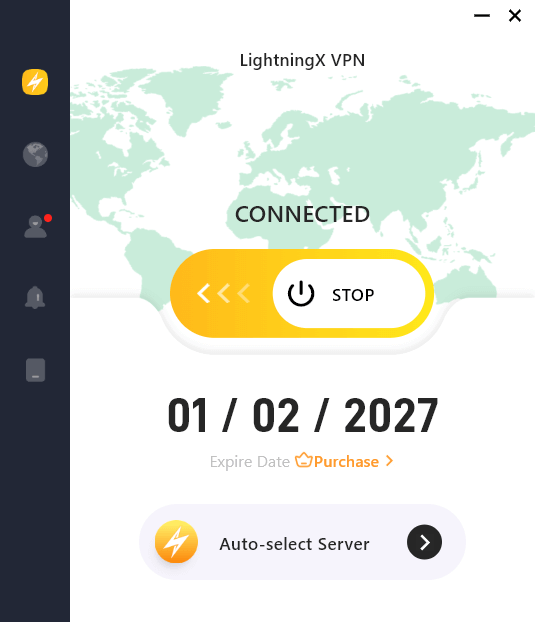
If you are in a region where Discord is blocked, you might encounter the RTC connecting error on Discord. You can use a VPN to hide your real IP address and unlock the geo-restriction. However, not all VPNs are good. You can try LightningX VPN, which has the best VPN protocol to unlock Discord from anywhere and protect it with high security.
- It offers 2,000+ servers in 70+ countries, including the US, Canada, India, and Japan.
- You can set it up on Windows, iOS, Android, Apple TV, Android TV, and Linux devices.
- It offers unlimited bandwidth and internet traffic.
Fix 3. Allow Discord through the Firewall or Antivirus
Sometimes the firewall will detect applications as malicious software and make them unavailable to reach these applications. If your Discord is disregarded by the firewall, RTC connecting might happen. You can add Discord to the whitelist of your firewall. Here’s how.
Step 1. Press the Windows and S keys simultaneously. Type Firewall and click on Windows Defender Firewall from the search results.
Step 2. In the left-hand menu, click Allow an app or feature through Windows Defender Firewall.
Step 3. Click “Change settings” at the top-right of the Window.
Step 4. In the list of apps and features, find Discord.
Step 5. Check the two boxes next to Discord to allow it through the private and public networks. Then click OK to save the change.
Fix 4. Change Your DNS Server to Fix Discord RTC Connecting
To handle RTC connecting on Discord, you can try changing the DNS server. DNS is critical for translating domain names into IP addresses, affecting the clients reaching the targeted server. In a word, conflict and incorrect DNS servers can influence your internet speed and accuracy, causing Discord “RTC connecting”.
You can change your DNS server to a reliable and widely used server like the Google DNS server. Then, after the change, flush the DNS cache and reset the IP settings.
Fix 5. Update Your Network Driver
If your network driver is outdated, it might cause your Discord to appear as RTC connecting. You can set up driver update software on your PC to keep the network driver up to date.
You can also go to the website of your PC manufacturer to check the latest driver software. You can also update all the drivers on your PC, which will enhance your gaming and video-watching experience.
Here’s how to update your network driver.
- Press the Windows and R keys simultaneously to open the Run dialog.
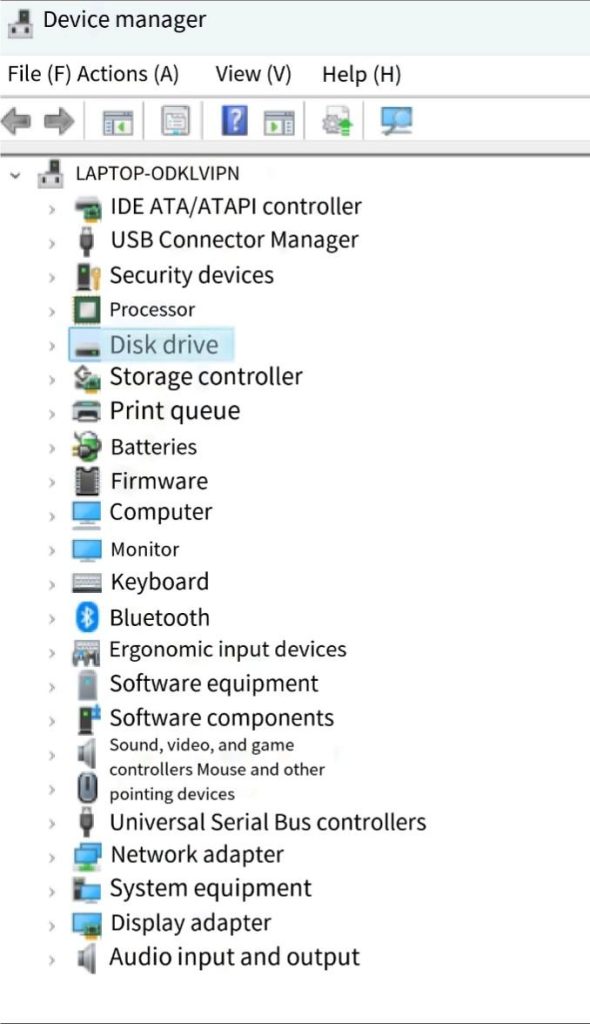
- Type “devmgmt.msc” and click OK to open Device Manager.
- Locate and double-click Network adapters in the list of devices to expand the option.
- Right-click on your network adapter and select “Update driver”.
- Click “Search automatically for drivers”. Then, wait for the update to be done.
Fix 6. Contact Discord Support
If the “RTC Connecting” issue persists, try contacting Discord support.
You might need to provide them with your Discord account details, like your email address and username.
Common Causes of the RTC Connecting Error on Discord
There are multiple factors that can affect your Discord connection.
- Poor Internet connection: RTC connecting on Discord is an Internet-related issue. If your internet is slow or unavailable, you can’t connect to the Discord voice chat.
- Blocked IP address: If your region blocks Discord, your Discord will appear as RTC connecting.
- False DNS server: If your DNS server has conflicts or issues, Discord might not connect to the voice channel.
- Blocks of a firewall or antivirus software: If your Discord is mistakenly identified as malware by the firewall or antivirus software, your network connection may be restricted.
- Outdated network driver: If your network driver is outdated, your network might not run well, causing Discord not to connect to the channel.
Wrap Up
To fix “RTC Connecting” on Discord, you can check your internet connection, use a VPN, flush your DNS server, block antivirus protection, or update the network driver. However, if none of the solutions work, try contacting Discord support.






