


Discord has over 500 million registered users, but many schools and countries block Discord to keep students focused and prevent them from accessing controversial content.
This guide will show you how to unblock Discord using various methods such as VPN, DNS changes, Chrome extensions, and more.
6 Ways to Unblock Discord
Way 1: Get Unblocked Discord with VPN
If you want to unblock Discord safely, VPN is the best choice! It helps change your IP address to other countries that can access Discord and ensure your online activities remain private.
As the best VPN for Discord, LightningX VPN offers more than 2000 nodes, allowing you to unblock Discord in any country. It uses advanced security technologies such as Shadowsocks and Vless to ensure privacy and security.
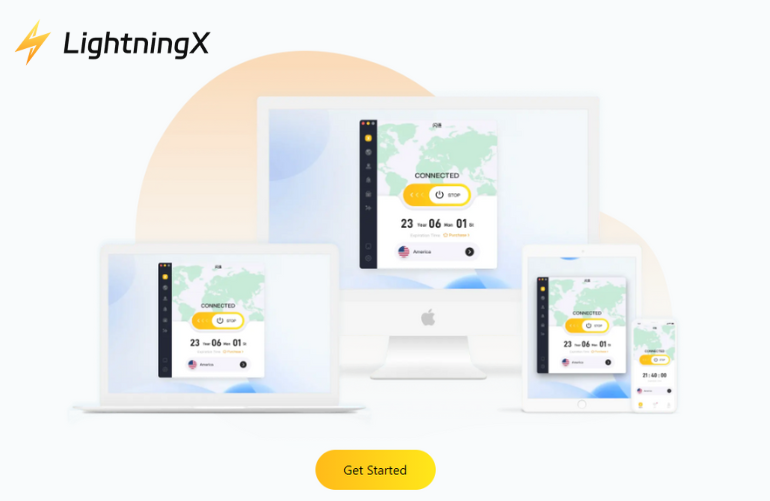
Step 1: Click the button above to download and install LightningX VPN to enjoy some free nodes and a 30-day money-back.
Step 2: Open LightningX VPN and check the server list. Select a server in a location where Discord is accessible, like the United States.
Step 3: Open Discord. Log in and start chatting with your friends!
By using a VPN, you can route your internet traffic through an encrypted path, making it appear as if you are browsing from another location.
Way 2: Use the Discord Unblocked Chrome Extension
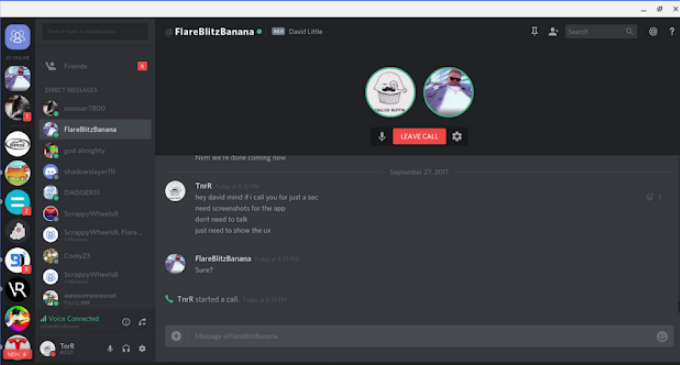
In addition to using a VPN to unblock Discord, you can also use a Chrome Extension to unblock Discord.
- Open Google Chrome and add the Discord Unblocked extension.
- Go to the Discord web app and use it directly.
Note: The extension only works on the web version of Discord and will not bypass network blocking or protect your private information on public servers.
Way 3: Use a Web Proxy to Get Unblocked Discord
A web proxy server routes your internet traffic through a proxy server, which masks your IP address and allows you to access websites that may be restricted in your location, such as Discord.
- Visit a reliable web proxy.
- Copy the Discord URL (https://discord.com/login) and paste it into the proxy site.
- Click the button to connect, and you’ll be redirected to the Discord web app. Log in and start chatting!
Way 4: Copy the IP Address (Windows)
Some schools use keyword-based content blockers. When you type in “discord,” it will be blocked. For this kind of blocking, you can use the website’s IP address to bypass these blockers.
- Click the Start menu, type “Command Prompt,” and open it.
- Type discord.com and press Enter.
- Copy and paste the IP address into your browser’s address bar. Press Enter, and you will be able to access Discord.
Way 5: Change DNS to Unblock Discord
Switching to a third-party DNS server can sometimes help unblock Discord by bypassing local DNS restrictions. Follow the steps below to change your DNS settings on different devices.
Step 1: Choose a reliable DNS server like Google, Cloudflare, or AdGuard.
Step 2: Change DNS Settings:
- On Windows: Go to “Control Panel” > “Network and Sharing Center” > “Change adapter settings”. Right-click on your network and select Properties. Select Internet Protocol Version 4 (TCP/IPv4) and click Properties. Choose “Use the following DNS server addresses” and enter the DNS server addresses.
- On Mac: Go to “System Preferences“ > ”Network“. Select your network connection and click ”Advanced“. Go to the DNS tab and add the new DNS server addresses.
- On Mobile: Go to your Wi-Fi settings, tap on your network, and modify the DNS settings.
Step 3: Restart Discord
After saving the changes, reopen Discord and check if the service is accessible.
Note: Changing DNS may help with basic network blocks, but it won’t bypass stricter restrictions.
Way 6: Use Discord Web Version
If the Discord desktop app is blocked or can’t be installed, the web version is a simple and effective alternative.
Step 1: Open any web browser and visit Discord’s official website.
Step 2: Sign in with your Discord account credentials.
Step 3: Start using Discord directly in your browser. The web version supports text messaging, voice calls, and video chats, similar to the desktop app.
This method works well on most devices and doesn’t require any software installation.
Why Is Discord Blocked?
For various reasons, Discord is often blocked in schools, workplaces, or certain regions. Schools may restrict students’ access to Discord to help them concentrate and avoid distractions during class. The platform also allows file sharing and access to public servers, which may contain unsafe links or content that schools want to avoid.
In some countries, access to Discord is also restricted due to concerns about sensitive discussions involving political, religious, or other regulated topics. These restrictions make it difficult for users to unblock Discord without using alternative methods.
What is Discord?
Discord is a popular communication platform with over 500 million registered users worldwide. Originally designed for gamers, it has evolved into a versatile application used by online communities, study groups, and remote teams.
Users can send text messages, join voice and video calls, and participate in large servers built around shared interests.
FAQ about Discord Unblocked
1. How can I unblock Discord at school?
If your school or university network has blocked Discord, try VPN, DNS, or one of the above methods.
2. How to Unblock Someone on Discord?
To unblock someone on Discord:
- Go to your Friends list.
- Click on the Blocked tab.
- Find the user you want to unblock.
- Click the Unblock button next to their name.
For more detailed information on blocking, unblocking, muting, kicking, and banning users on Discord, check out this guide: How To Block Someone on Discord?






