


Does your Chrome browser frequently freeze, run slowly, or load web pages extremely slowly? Why is Chrome so slow, even when performing simple tasks?
In this guide, we will analyze in detail the most common reasons for Chrome’s slow performance and provide you with some practical and easy-to-implement solutions to help you improve Chrome’s speed.
Why Is Chrome So Slow? 7 Reasons
Many factors can cause Chrome to load slowly. Here are the 7 most common ones:
1. Too many open tabs
Chrome is known for consuming a lot of memory. If you have dozens of tabs open simultaneously, each tab will consume system resources in the background, even if you’re not actively using them.
2. Accumulation of cache and temporary files
Chrome stores cache and temporary files to speed up website loading. However, if these files are not cleaned up for a long time, they can slow down the browser.
3. Too many extensions running in the background
While extensions are useful, each extension runs background processes. If you have many extensions installed, Chrome’s speed may be significantly affected.
4. Outdated Chrome version
Running an older version of Chrome can lead to performance issues, errors, and compatibility problems with newer websites.
5. Unstable or weak network connection
Sometimes, slow Chrome performance isn’t a browser issue, but rather a problem with your network connection. Weak Wi-Fi signals or network congestion can cause slow page loading.
6. Using low-quality free VPNs
Many free VPNs have a limited number of servers, and too many users share the same connection. This can lead to slower browsing speeds in Chrome.
Read more: Are Free VPN Safe? 5 Risks You Need to Know!
7. Malware and viruses
Malware and adware can run silently in the background, consuming CPU and memory, thus affecting Chrome’s speed and overall system performance.
9 Easy Ways to Speed Up Your Google Chrome
If your Chrome browser is running slowly, try the following steps to restore its smooth operation.
1. Check your internet speed
Sometimes, slow Chrome performance isn’t Chrome’s fault, but rather a problem with your internet connection.
Use a tool like Speedtest to check your connection speed. If the speed is significantly lower than what your internet service provider (ISP) promises, try restarting your router or switching networks. If the speed is still slow, you’ll need to contact your ISP for troubleshooting.
2. Update Google Chrome to the latest version
Outdated browsers can lead to slow performance, errors, and security issues. Chrome usually updates automatically, but if you haven’t restarted it in a while, there might be pending updates.
Here’s a quick guide to update Chrome:
- If you see a pending update, click the button next to the three-dot menu. Choose “Relaunch” from the pop-up to restart Chrome with the update.
- If you’re not ready to restart, select “Not now”; the update will apply next time you open Chrome.
If you intend to check your Chrome version and update manually:
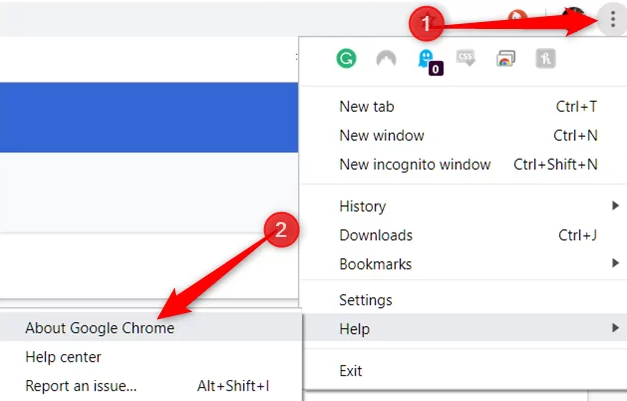
- Open Chrome.
- Click the three vertical dots for “More.”
- Go to “Help” > “About Google Chrome”.
- Chrome will check for updates and prompt you to relaunch if an update is needed.
3. Removing Unnecessary Chrome Extensions
One of the most common reasons for slow Chrome performance is too many extensions running in the background.
Here’s a simple guide:
- Click the three dots in the top right corner of Chrome to access “More.”
- Navigate to “Extensions” to open the Manage Extensions page.
- Find the extension you wish to remove or deactivate.
- Click “Remove” to delete it or switch the toggle off to deactivate.
4. Use the Best VPN
Best VPN for Chrome can provide abundant nodes and unlimited bandwidth and speed services, allowing you to access the Internet without restrictions. In addition, VPNs can help hide your IP address so that your ISP cannot limit your Internet speed.
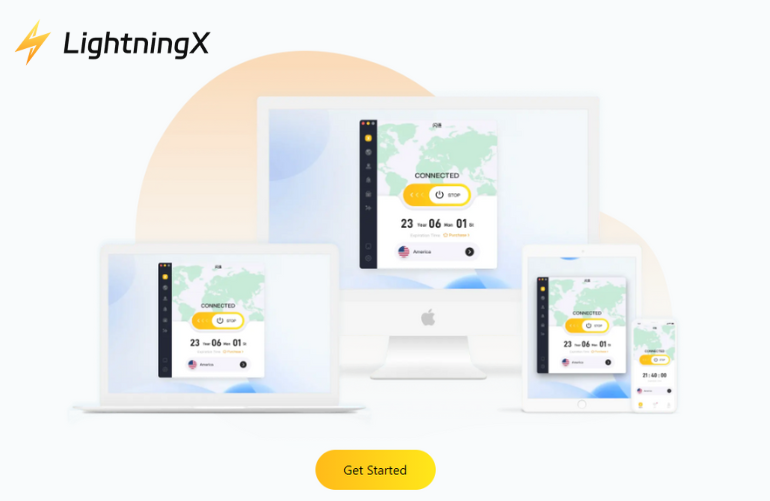
LightningX VPN provides 2000+ nodes, unlimited bandwidth, and speed. You can choose any country to get more information on Chrome.
It offers solid protection for your network, making it the best VPN for maintaining your privacy and securing your internet activities. Now, you can download LightningX VPN for free nodes and a 30-day money-back.
5. Clear Chrome Cookies and Cache
Over time, cached files and cookies accumulate, causing Chrome to run slowly. You can follow the steps below to clear Chrome cookies and cache.
- Click the three dots at the top right of Chrome to access “More.”
- Choose “More Tools,” then “Clear browsing data.”
- Select a timeframe; “All time” is best for a complete clean-out. Hit “Clear data” to finish.
6. Enable Hardware Acceleration
Hardware acceleration allows Chrome to use your computer’s GPU to improve performance.
- Go to “Settings” → “System.”
- Enable “Use hardware acceleration when available”
- Restart Chrome
7. Find and Remove Malware
Malware and unwanted software can silently consume system resources, causing Chrome to run slowly and become unstable.
Run a trusted antivirus or anti-malware scan and remove any suspicious content. This protects both Chrome and your entire system.
Read more: How to Get Rid of Malware [Beginner-friendly Guide]
8. Ad Blockers
Web pages with too many ads can significantly slow down Chrome.
Using a best ad blocker for Chrome can shorten page load times and improve responsiveness, resulting in a smoother browsing experience.
9. Resetting Chrome
If you still can’t figure out why Chrome is running slowly, resetting Chrome might help.
This will restore Chrome to its default settings and remove extensions, themes, and custom settings.
- Open “Settings”
- Go to “Reset settings.”
- Click “Restore settings to their original defaults.”
FAQ: Why Is Chrome So Slow
1. Why is Firefox running slowly?
If Firefox is running slowly, it may be due to the accumulation of cookies and cache from the websites you visit. Regularly clearing the Firefox cache and deleting any add-ons you no longer use are effective solutions to maintain optimal browsing speed.
2. Why is my Chromebook so slow?
If your Chromebook is running slowly, it could be due to several factors.
Installing too many Chromebook extensions can slow it down. Additionally, having too many tabs open, not regularly shutting down your Chromebook, or insufficient storage space can also lead to decreased performance.






