


In this post, you can learn how to find Roku IP address with several methods. You can find it from the Roku settings menu, using the Roku mobile app, or using your router. Check the detailed guides below.
Method 1: Find Roku IP Address from the Roku Settings Menu
The easiest and most direct method to find your IP address on Roku TV is through your Roku’s built-in settings. This method works best when you have the standard Roku remote available.
- Turn on your Roku device.
- Press Home on the Roku remote.
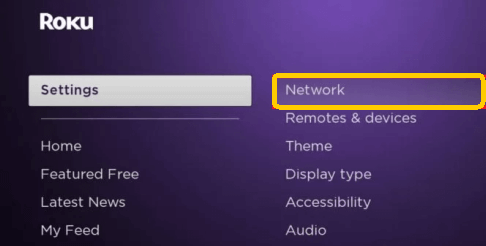
- Scroll down and select Settings.
- Choose Network.
- Select About or Connection Status.
Under the network details, you will see:
- IP Address
- MAC Address
- Wi-Fi Signal Strength
- Network Type (Wireless/Wired)
Also read: MAC Address vs IP Address: A Detailed Comparison
Method 2: How to Find Roku IP Address Without a Remote (Using the Roku Mobile App)
If you don’t have a Roku remote at hand, you can still find your Roku’s IP address using the Roku mobile app available on iPhone and Android.
- Find and install the Roku App from the Apple App Store or Google Play Store.
- Connect your phone to the same Wi-Fi network as your Roku.
- Open the Roku app and tap Devices at the bottom.
- Choose your Roku device (it should appear automatically).
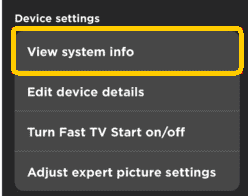
- Tap the three-dot icon (settings) next to your Roku device.
- Select View system info. You will see your Roku’s IP address displayed clearly.
Method 3: Find Roku IP Address Using Your Router’s Device List
Your router keeps a record of all connected devices. You can find your Roku TV IP address using your router. This method is excellent when your Roku screen isn’t accessible, your Roku remote is not working or missing, or you’re checking from another room.
Because every router interface is slightly different, the steps below describe the general process.
- Open a browser on your computer or smartphone.
- Enter your router’s login address or IP address (e.g., 192.168.0.1 or 192.168.1.1).
- Log in to your router’s admin panel.
- Go to Connected Devices, Device List, or DHCP Clients.
- Look for a device labeled:
- Roku
- Roku-Express
- Roku-TV
- Roku-Stick
- Or look for the device using its MAC address (Roku MAC addresses usually start with 88:DE:…)
- Once you find the Roku device, the router will show its IP address.
Tip: To find your router IP address, you can press Windows + R, type cmd, and press Enter. In Command Prompt, type ipconfig command and press Enter. Your router IP address is located next to “Default Gateway”.
Troubleshooting: Roku Isn’t Showing an IP Address
Sometimes, you may encounter situations where your Roku doesn’t display an IP address at all. This often means your device is not connected to Wi-Fi, is too far from your router, or is stuck in a network error loop.
Try:
- Restart your Roku
- Restart your router
- Move your Roku closer to the Wi-Fi source
- Reconnect to Wi-Fi via Settings > Network > Set Up Connection
- Use an Ethernet cable if possible (Roku Ultra)
Why You May Need to Find Your Roku’s IP Address
- Fixing Roku that won’t connect to Wi-Fi
- Diagnosing buffering or slow streaming
- Setting up parental controls within your router
- Checking devices currently connected to your network
- Using network-based remote-control tools
- Configuring advanced settings, like VPN routers or DNS
Can You Install a VPN on Roku TV to Change IP?
No – you cannot install a VPN directly on a Roku TV or any Roku device. Roku OS does not support native VPN apps, VPN APK installations, or manual VPN configuration.
However, the good news is: You can still use a VPN with Roku TV through several effective workarounds that route your Roku’s internet traffic through a VPN-enabled connection.
1. Set Up a VPN on Your Router (Best Method)
This is the most reliable and recommended solution. You install the VPN directly on your Wi-Fi router, and all devices connected – including Roku TV – automatically use the VPN.
Pros:
- Works for all Roku devices
- Protects your entire home network
- Great for streaming geo-blocked content
Cons:
- Requires a VPN-compatible router
- Setup may take 5–10 minutes
Most major VPNs (ExpressVPN, NordVPN, etc.) offer router VPN installation guides.
2. Create a VPN Wi-Fi Hotspot (Windows / Mac)
If your router doesn’t support VPNs, you can share a VPN-protected connection from your computer.
- Connect your Windows or Mac to a VPN.
- Share your computer’s VPN connection by creating a Wi-Fi hotspot.
- Connect your Roku TV to that hotspot.
Pros:
- No special router needed
- Quick setup
Cons:
- Requires a laptop
- Slightly slower speeds than a router VPN
3. Use a Smart DNS (Good for Streaming)
Most premium VPNs also offer Smart DNS, which you can configure directly on your Roku TV.
Smart DNS doesn’t encrypt your traffic – it simply unblocks streaming content by changing DNS settings.
Pros:
- Simple setup
- Fast streaming speeds
Cons:
- No encryption
- Must support Smart DNS
Tip: If you want to install a VPN on Android TV, Apple TV, PC, Mac, Android, iOS, Linux, Chrome, Firefox, and Edge, you can try LightningX VPN. This VPN offers 2000+ servers in 70+ countries, including several free servers. It is fast, stable, secure, and helps you easily access global websites or apps (e.g., Netflix, Hulu, Disney+, etc.)
How to Find Roku IP Address – FAQs
1. Can I find my Roku IP address without Wi-Fi?
No. An IP address requires an active network connection.
2. Can a VPN hide my Roku’s IP address?
Not directly. You need a VPN router or smart DNS setup to mask Roku traffic.
3. Does the Roku IP address change?
Yes, unless you assign a static IP in your router.
4. Can I find the Roku IP address using its MAC address? Yes, MAC addresses help you identify your Roku inside router settings or network scanners.






