


The “Server DNS address could not be found” error usually means your device cannot translate a domain name into an IP address, preventing the connection from being established. In this post, you’ll learn 10 methods to fix this problem on Windows, Mac, and other devices. Each method includes step-by-step instructions.
What Does “DNS Address Could Not Be Found” Mean?
Before fixing the issue, it helps to understand what’s happening behind the scenes. DNS (Domain Name System) acts like the Internet’s phonebook. When you type a website address, your device asks a DNS server to find the correct IP.
If that process fails, your browser shows errors like “DNS address could not be found” or “server DNS address could not be found”, even if your internet connection appears active.
Common causes of this error:
- Your device isn’t properly connected to the network.
- DNS server not responding: The DNS server from your ISP is down or overloaded.
- Wrong or misconfigured DNS settings on your device.
- Corrupted DNS cache.
- Router or modem problems.
- VPNs or proxies are blocking or misrouting DNS requests.
- Firewall or antivirus blocking DNS.
- Outdated network drivers.
- The website’s own DNS records are missing or misconfigured.
- Your internet service provider is experiencing DNS problems.
Fix 1: Check Your Internet Connection
Sometimes the error has nothing to do with DNS itself. A weak or disconnected network can trigger the “DNS address could not be found” message.
Steps:
- Make sure Wi-Fi or Ethernet is well-connected.
- Restart your modem and router.
- Try opening a different website.
- Test your internet connection on another device.
If multiple devices fail, the issue may be network-related rather than DNS-specific.
Fix 2: Restart Your Device
Temporary system glitches can cause a “Server DNS address could not be found” error. A reboot clears cached network data.
Steps:
- Close all browsers and applications.
- Restart your computer or mobile device.
- Reopen the browser and visit the website again.
This simple fix often resolves minor DNS conflicts instantly.
Fix 3: Flush the DNS Cache
Your system stores DNS records locally. If the DNS cache is outdated or corrupted, the “DNS address could not be found” error may appear.
Steps (Windows):
- Press Windows + R, type cmd, and press Enter.
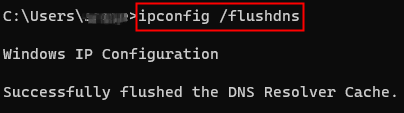
- Type: ipconfig /flushdns. Press Enter.
- Restart your browser.
Steps (macOS):
- Open Terminal via Spotlight.
- Enter: sudo dscacheutil -flushcache; sudo killall -HUP mDNSResponder. Press Enter.
- Reopen the site.
Fix 4: Change DNS Server Addresses
Your ISP’s DNS servers may be unavailable or slow, leading to the “website DNS address could not be found” error. Switching DNS servers improves speed and reliability.
Steps:
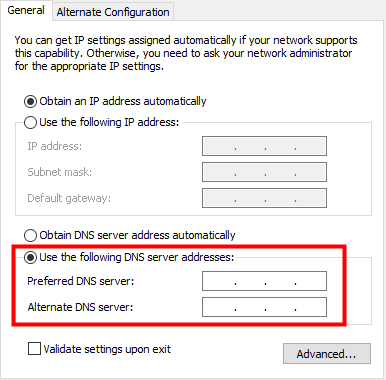
- Open Network Settings. Press Windows + I > Network & Internet > Change adapter options > right-click your active network and select Properties.
- Select Internet Protocol Version 4 (TCP/IPv4).
- Manually set DNS servers to:
- Google DNS: 8.8.8.8, 8.8.4.4
- Or Cloudflare DNS: 1.1.1.1, 1.0.0.1
- Save changes and reconnect to the site.
Fix 5: Disable VPN or Change VPN
VPNs or proxies can interfere with DNS resolution, causing the “DNS address could not be found” problem.
Steps:
- Disconnect from your VPN.
- Change VPN server.
- Change to another VPN. LightningX VPN is a VPN for PC, Mac, Android, iOS, TV, Linux, Chrome, Firefox, and Edge. It offers numerous servers in 70+ countries (with several free servers). You can use this VPN to get a fast, stable, secure, and private network connection, and unlock sites/apps/services worldwide.
- Reload the website. If the site loads correctly, the VPN’s DNS configuration may be the issue.

Fix 6: Reset Network Settings
Incorrect network configurations can result in a “Server DNS address could not be found” error.
Steps (Windows):
- Press Windows + R, type cmd, and press Ctrl + Shift + Enter to open Command Prompt as administrator.
- Run the commands: netsh int ip reset; netsh winsock reset. This restores network settings to default values.
- Restart your computer and try to load the site again.
Fix 7: Update Network Adapter Drivers
Outdated or corrupted drivers can prevent proper DNS communication, leading to a “DNS address could not be found” error. Keeping drivers updated ensures stable DNS resolution.
Steps:
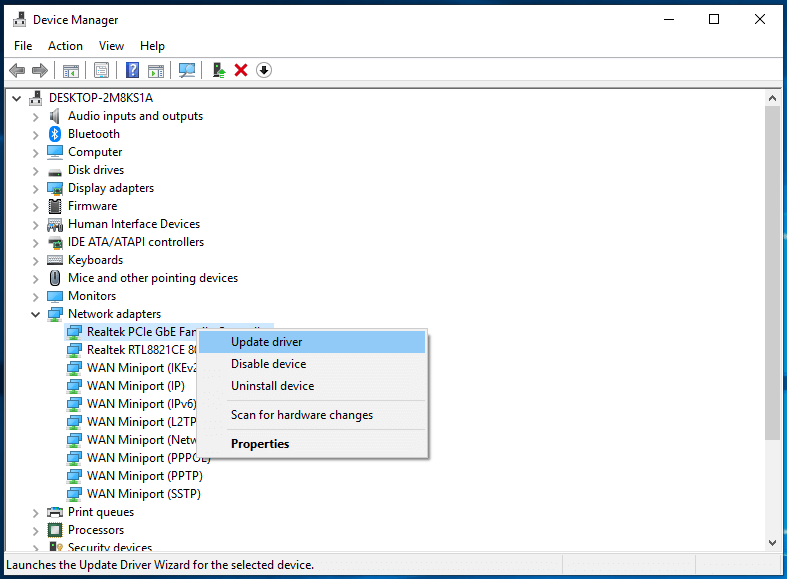
- Press Windows + X and open Device Manager.
- Expand “Network adapters”.
- Right-click your adapter and select “Update driver”.
- Restart after updating.
Fix 8: Temporarily Disable Firewall or Antivirus
Overly strict security software may block DNS requests, causing the “DNS address could not be found” issue.
Steps:
- Temporarily disable firewall or antivirus software.
- Try accessing the website.
- If successful, whitelist your browser or DNS service.
Always re-enable protection after testing.
Fix 9: Check the Website’s DNS Status
Sometimes the issue isn’t on your side. The website’s DNS records may be down, resulting in a “website DNS address could not be found” error.
Steps:
- Try opening the site on another network.
- Use an online DNS checker tool.
- Wait and retry if the site’s DNS is unavailable.
Fix 10: Contact Your Internet Service Provider
If none of the above methods work, your ISP may be experiencing DNS outages, triggering a “Server DNS address could not be found” error. ISP-side problems require provider intervention.
Steps:
- Contact ISP support.
- Ask about DNS or network issues in your area.
- Request alternative DNS settings if available.
Conclusion
The “DNS address could not be found” error is annoying but rarely permanent. In most cases, switching DNS servers, flushing the DNS cache, or adjusting network settings resolves the problem quickly. Hope the solutions in this post help you fix the issue.






