


A stable internet connection is essential for work, entertainment, and communication. However, WiFi problems can occur unexpectedly, such as slow speeds, random disconnections, or no connection at all.
In this guide, you can learn 10 methods on how to fix WiFi, along with detailed instructions. Whether your WiFi keeps disconnecting, shows “connected but no internet”, or simply won’t turn on, the solutions below can help restore your connection.
How to Fix WiFi Connection Problems
1. Restart Your Router and Modem
One of the simplest and most effective solutions to fix WiFi connection issues is restarting your networking equipment. Routers can accumulate temporary errors that affect connectivity. Restarting the router and modem clears temporary glitches and refreshes your internet connection.
Steps to restart your router:
- Locate your WiFi router and modem.
- Press the power button to turn them off or unplug both devices from the power outlet.
- Wait 30–60 seconds to allow internal memory to reset.
- Plug the modem back in first.
- Wait until all lights stabilize.
- Turn the router back on.
- Reconnect your device to WiFi.
2. Restart Your Device
Sometimes the problem isn’t the router, it’s your device. Restarting your laptop, phone, or tablet can refresh its network connection. This simple fix is often overlooked when users search for how to fix WiFi problems. This method clears temporary system errors and reconnects your device to the router.
Steps to restart your device:
- Save any open work.
- Click Restart or Reboot from the power menu.
- Wait until the device fully restarts.
- Reconnect to your WiFi network.
3. Move Closer to the Router
Distance and obstacles can weaken your WiFi signal. Walls, furniture, and electronic devices can all interfere with wireless signals. If you’re wondering how to fix WiFi signal issues, improving your physical location can help.
Steps to improve WiFi signal strength:
- Move your device closer to the router.
- Avoid placing the router behind walls or large furniture.
- Keep the router elevated, such as on a shelf.
- Reduce interference from devices like microwaves.
A stronger signal often resolves slow internet speeds and intermittent connections.
4. Forget and Reconnect to the WiFi Network
If your device stores outdated network data, reconnecting from scratch may help. This is another common technique for fixing WiFi connection errors.
Steps to forget a network:
- Open WiFi settings.
- Select your current network.
- Click Forget Network.
- Wait a few seconds.
- Search for available networks again.
- Select your WiFi network.
- Enter the password to reconnect.
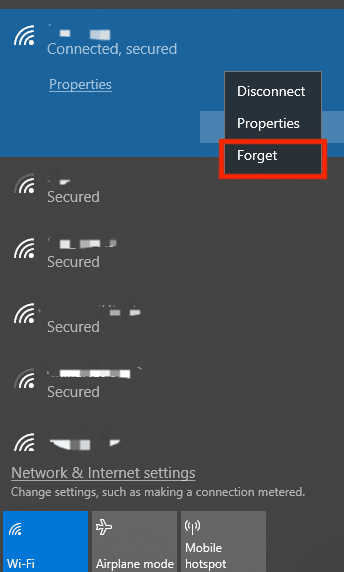
This process resets the saved configuration and often resolves authentication problems.
Tip:
If you want to install a VPN on your device to get a virtual private network and protect your privacy, you can try LightningX VPN. This VPN offers fast servers in 70+ countries. Download and install LightningX VPN on your PC, Mac, Android, iPhone/iPad, TV, Linux, etc. and use it to access region-locked apps, websites, services from all over the world.
5. Check Your WiFi Network Settings
Incorrect settings can prevent devices from connecting to the internet. Verifying your network configuration is another essential step when figuring out how to fix WiFi.
How to check WiFi settings:
- Open Settings on your device.
- Navigate to Network & Internet or WiFi settings.
- Make sure WiFi is turned on.
- Select your wireless network from the list.
- Enter the correct WiFi password.
- Confirm the connection status.
If your device shows “Connected but no internet”, try disconnecting and reconnecting to the network.
6. Update Your Device’s Network Drivers
Outdated drivers can cause WiFi connectivity problems, especially on laptops and desktop computers.
If you’re researching how to fix WiFi not working on Windows, updating network drivers is critical.
Steps to update WiFi drivers on PC:
- Press Windows + X and open Device Manager on your computer.
- Expand the Network Adapters section.
- Right-click your WiFi adapter.
- Select Update Driver.
- Choose Search automatically for drivers.
- Install any available updates.
- Restart your computer.
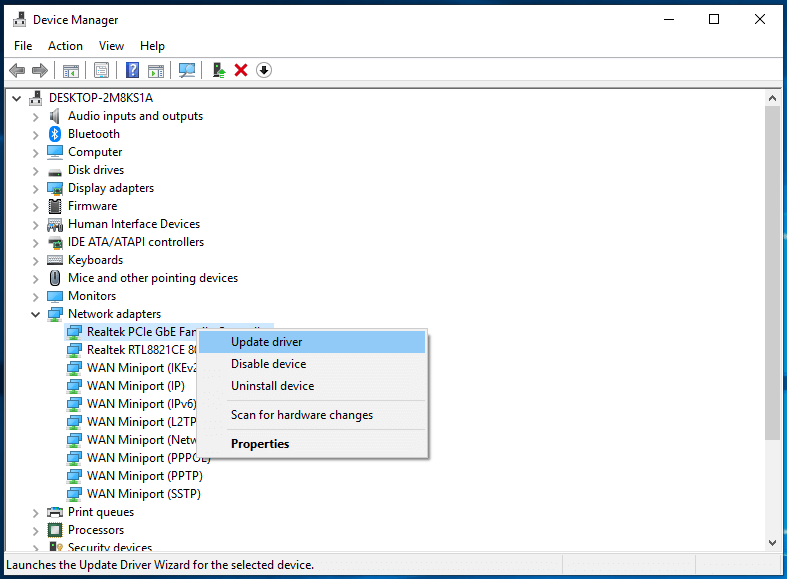
Updated drivers improve compatibility with modern routers and networks.
7. Reset Network Settings
Network settings can become corrupted over time. Resetting them can restore proper connectivity.
This solution is commonly recommended if you are wondering how to fix WiFi connected but no internet.
Steps to reset network settings (general process):
- Open Settings on your device.
- Navigate to Network & Internet.
- Find Network Reset.
- Confirm the reset.
- Wait for the device to restart.
- Reconnect to your WiFi network.
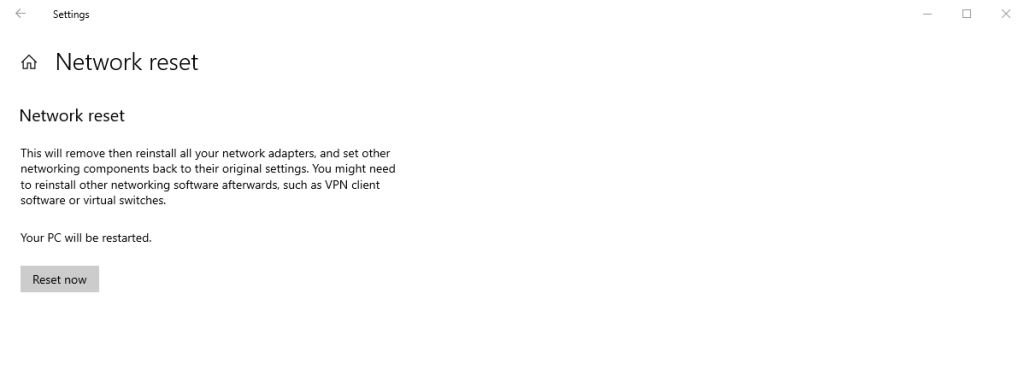
Be aware that this process removes all saved WiFi networks and passwords. You need to enter your password again to connect to your WiFi.
Related: How to Change WiFi Password (All Routers)
8. Check for Router Firmware Updates
Router firmware controls how your network operates. Outdated firmware can cause performance issues or compatibility problems. Updating router firmware is another reliable method to fix WiFi connection issues and improve your network stability and security.
Steps to update router firmware:
- Open a browser.
- Enter your router’s IP address (usually 192.168.1.1).
- Log in using your admin credentials.
- Locate the Firmware Update section.
- Check for available updates.
- Download and install the update.
- Restart the router.
9. Change Your WiFi Channel
WiFi networks can become congested when multiple routers operate on the same channel. Switching channels can reduce interference.
If you’re exploring how to fix WiFi slow speeds, adjusting the channel may help.
Steps to change the WiFi channel:
- Log into your router’s admin panel.
- Navigate to Wireless Settings.
- Locate the Channel option.
- Change it to another channel (e.g., 1, 6, or 11 for 2.4GHz).
- Save your changes.
- Restart the router.
This reduces interference from nearby networks and improves performance.
10. Contact Your Internet Service Provider
If none of the previous methods solves the WiFi issue, the problem may come from your internet service provider (ISP).
If your WiFi is not connected to the internet, your ISP may be experiencing outages.
Steps to check with your ISP:
- Visit your ISP’s website for outage announcements.
- Check service status tools.
- Contact customer support of your ISP.
- Ask if there is a regional outage.
- Request remote diagnostics if needed.
If there is an outage, you may simply need to wait until service is restored.
Additional Tips to Prevent WiFi Problems
Here are some best practices to prevent future WiFi problems:
- Place your router in a central location.
- Use dual-band routers for better performance.
- Regularly restart your router.
- Keep devices and firmware updated.
- Secure your network with a strong password.
These habits can significantly reduce the chance of WiFi disruptions.
Conclusion
Experiencing WiFi connectivity problems can be frustrating, but most issues can be resolved quickly with the right troubleshooting steps. By following the methods in this guide, you now know how to fix WiFi using practical and effective solutions.






